The Complete Guide to Installing Local AI Coding Assistants
- 🎮Full Ollama Setup- Complete installation and configuration on your personal machine
- 🎧VS Code Integration- Free alternative to GitHub Copilot with Continue extension
- 🚀Advanced Optimization- Memory tuning, context expansion, and performance tweaks
- 🗡️Model Comparison- Choosing the right LLM for your development needs
- 📰Enterprise Security- 100% offline operation with zero data leakage
- ⚔️Cost Analysis- ROI calculation and long-term savings
The landscape of AI-assisted programming has fundamentally shifted in the past 18 months. What was once the exclusive domain of cloud-based services costing hundreds of dollars annually can now run entirely on your local machine—faster, more secure, and without any recurring fees. This isn't a compromise or a "good enough" solution; for many developers, local Large Language Models (LLMs) have become the superior choice.
In this comprehensive Tekin Gaming guide, we'll walk you through installing Devstral 2 (a Mistral-based coding model) using Ollama, integrating it with Visual Studio Code, and optimizing it for professional development workflows. Whether you're a solo developer concerned about code privacy, a startup avoiding cloud vendor lock-in, or simply someone tired of paying monthly subscription fees, this guide will show you how to reclaim control over your AI coding assistant.
At a Glance
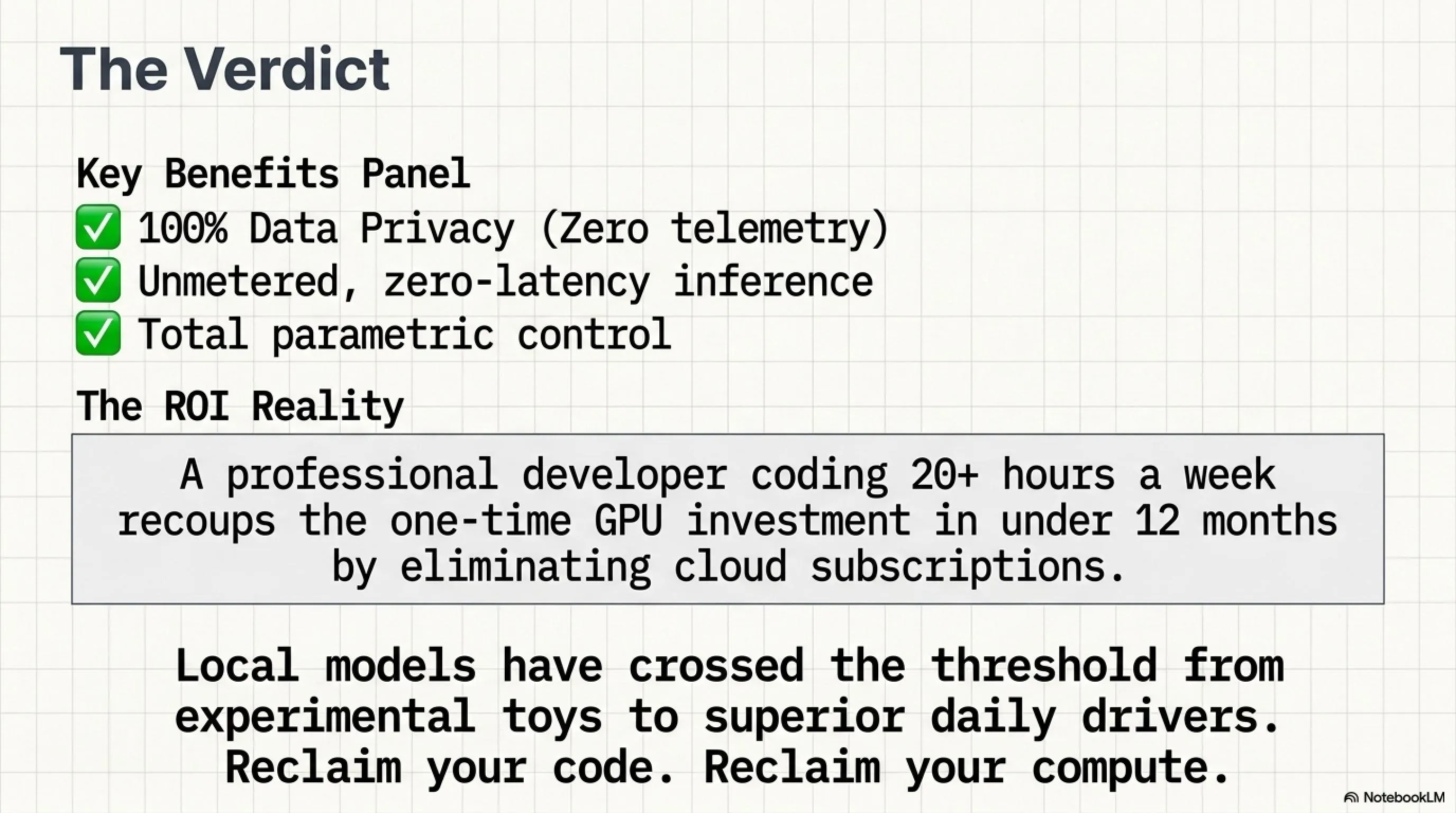
- Local LLMs provide security, speed, and complete independence from cloud services
- RTX 3060 (12GB) or higher enables running powerful 7B+ parameter models
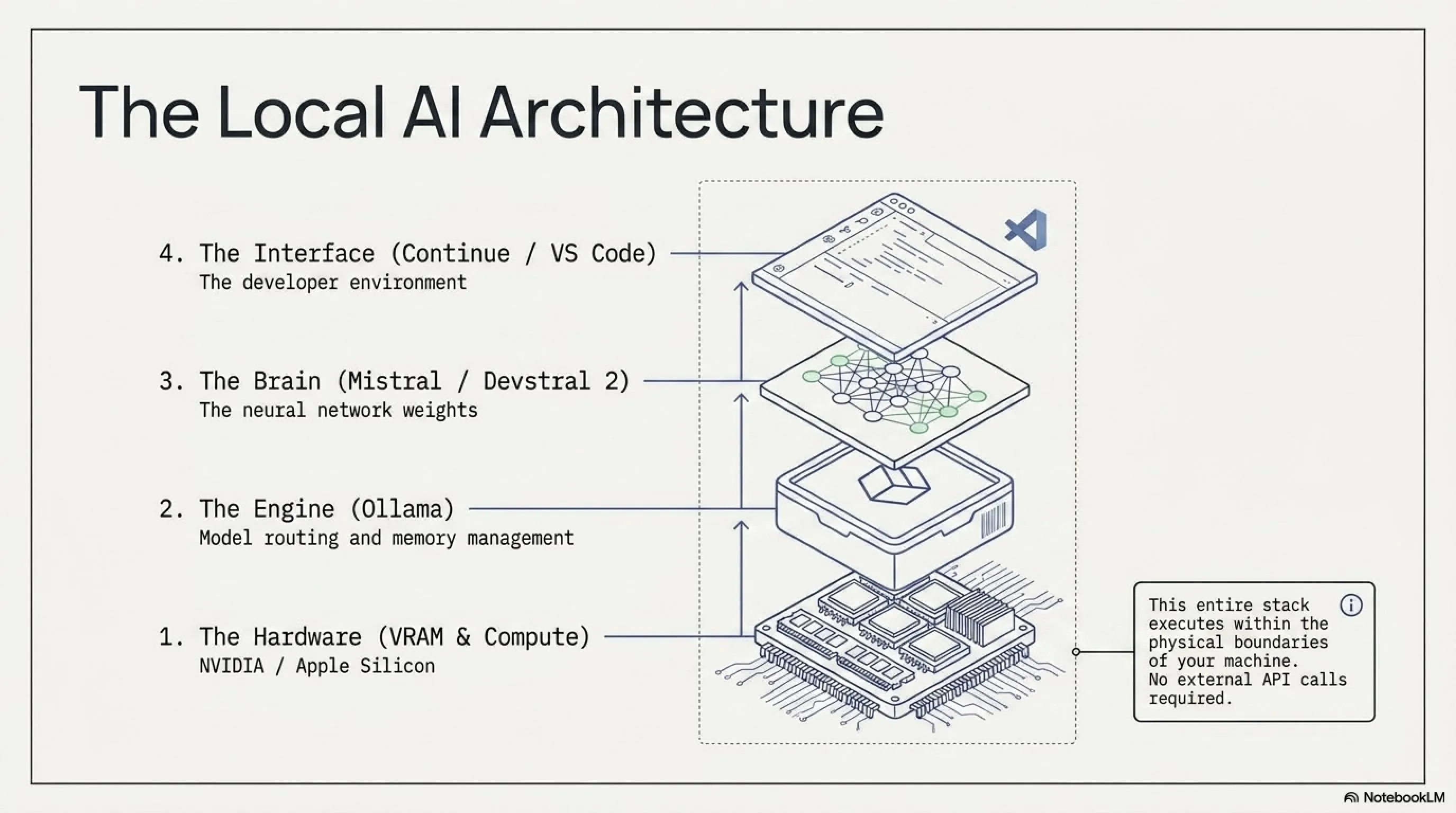
- Ollama + Continue in VS Code creates a complete GitHub Copilot replacement
- Inference speed on local hardware can exceed cloud API response times
- Modern open-source models like Devstral 2 approach GPT-3.5 performance in coding tasks
- One-time hardware investment pays for itself in 3-6 months compared to subscriptions
Chapter One: The Case Against Cloud-Based Coding Assistants
Before we dive into the technical implementation, it's crucial to understand why an increasing number of professional developers are migrating away from services like GitHub Copilot, ChatGPT Plus, and Claude Pro. The reasons go far beyond simple cost considerations.
The Security Nightmare Hidden in Convenience
Every time you accept a code suggestion from GitHub Copilot or paste a function into ChatGPT, that data traverses the public internet to reach servers owned by OpenAI, Microsoft, or Anthropic. For personal projects and open-source work, this might be acceptable. But consider these scenarios:
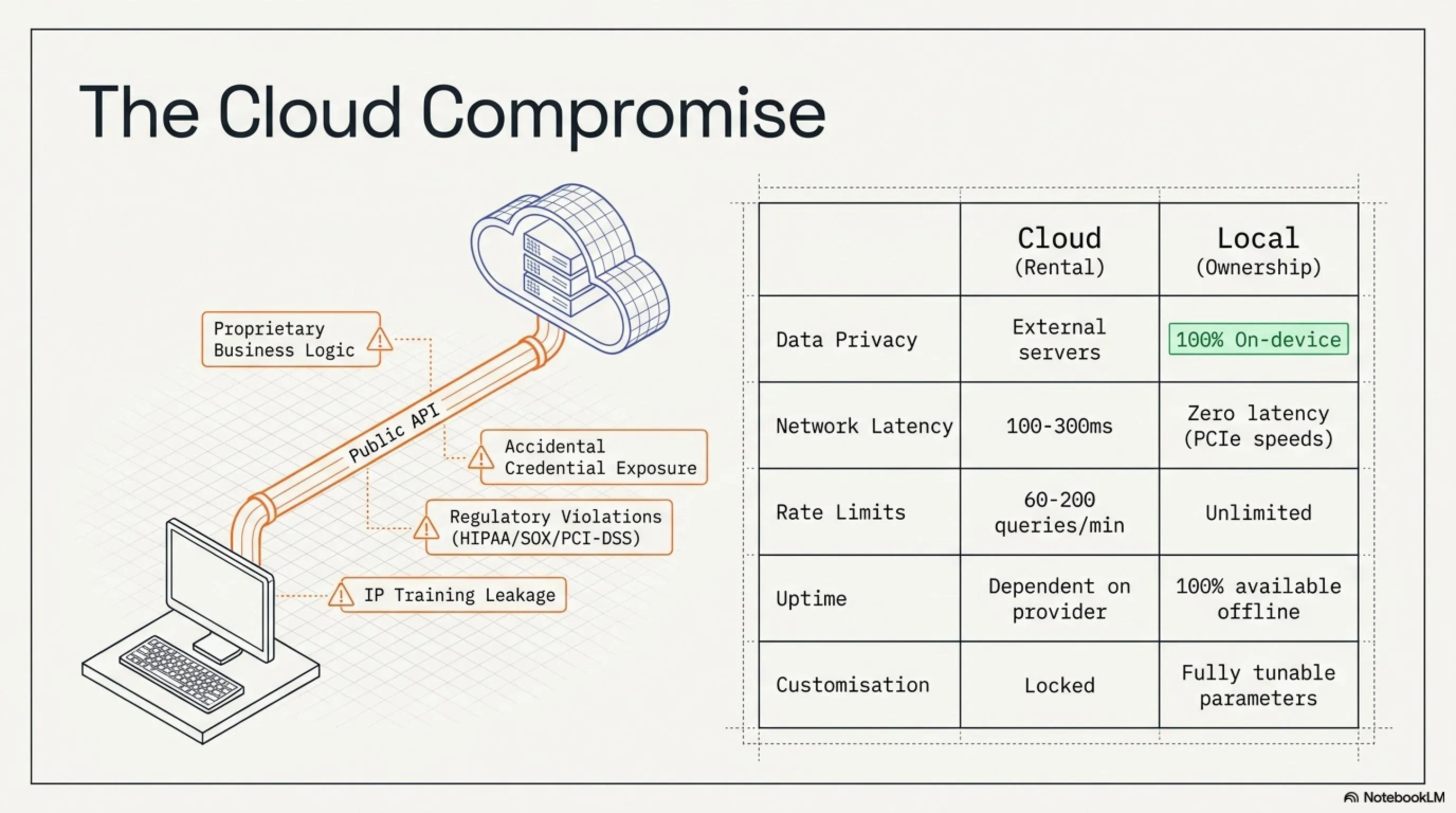
- Proprietary Business Logic: If you're building a fintech algorithm, a unique recommendation engine, or any competitive advantage encoded in software, sending that code to third-party servers creates an irrecoverable security risk. Even with assurances about data handling, you're trusting corporate policies that can change.
- Regulatory Compliance: Industries like healthcare (HIPAA), finance (SOX, PCI-DSS), and government contracting often have strict data residency requirements. Using cloud AI services may violate these regulations, exposing your organization to legal liability.
- Accidental Credential Exposure: Even careful developers occasionally paste code snippets containing API keys, database passwords, or authentication tokens. With cloud services, these secrets are transmitted and potentially logged.
- Intellectual Property Concerns: Some service agreements include clauses allowing the provider to use submitted data for model improvement. Your innovative code could theoretically end up training models that benefit your competitors.
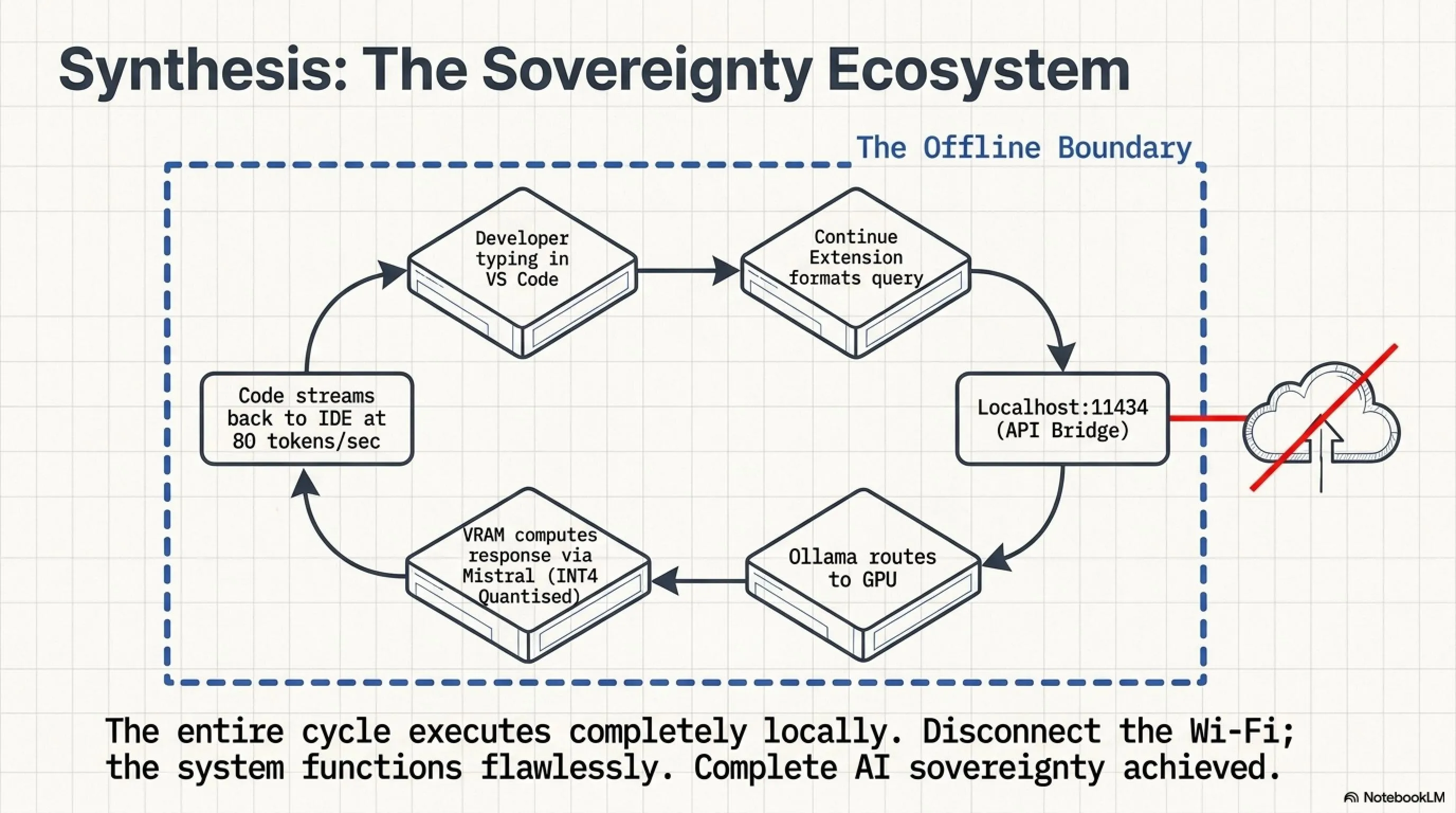
With a Local LLM, none of your code ever leaves your machine. You can physically disconnect from the internet and your coding assistant continues functioning perfectly. For companies handling sensitive data, this isn't just a nice-to-have feature—it's often a legal requirement.
The Economics of Ownership vs. Rental
Let's run the numbers with brutal honesty. A professional developer using cloud AI services might be paying:
- GitHub Copilot: $10/month ($120/year)
- ChatGPT Plus: $20/month ($240/year)
- Claude Pro: $20/month ($240/year)
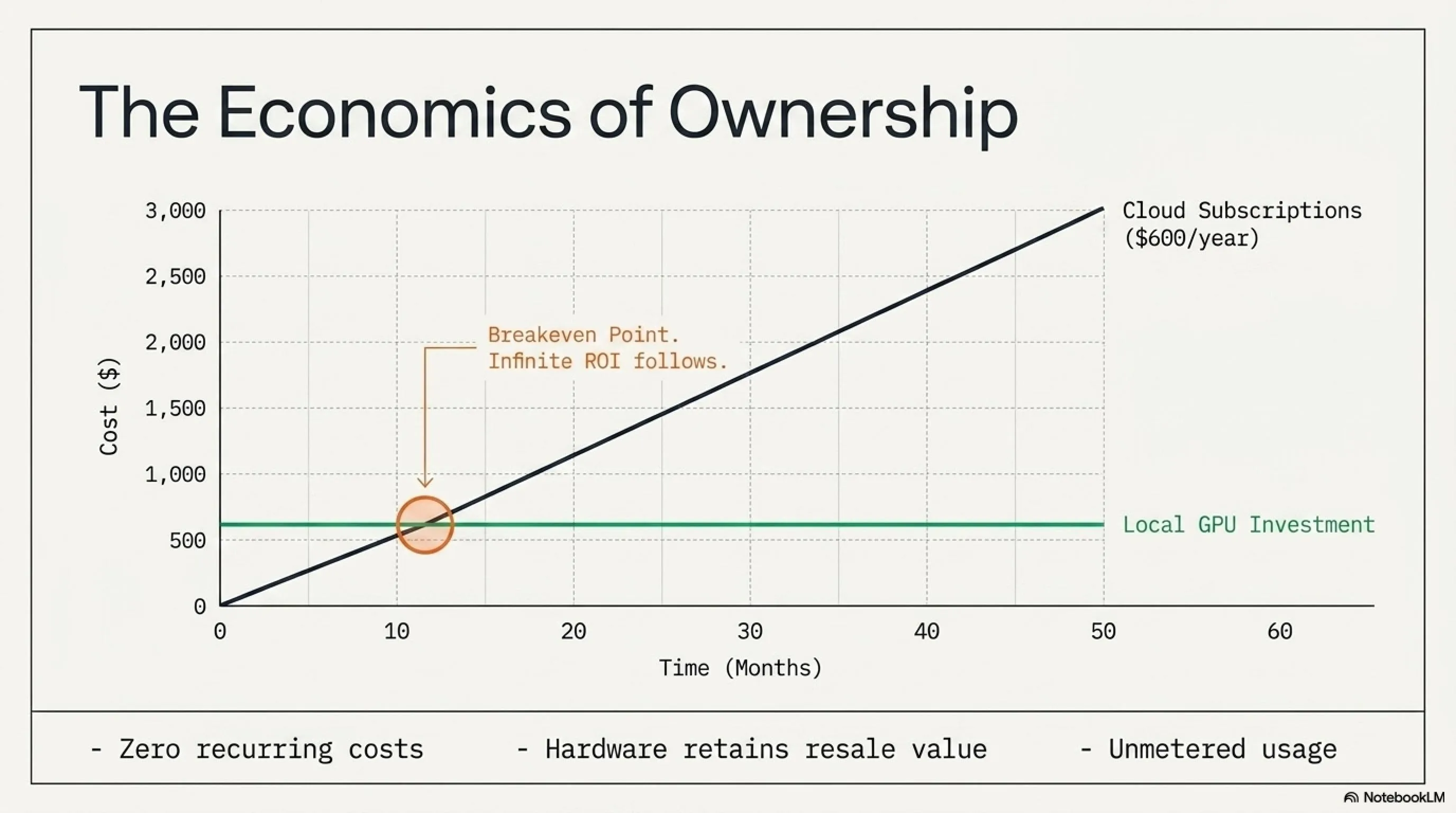
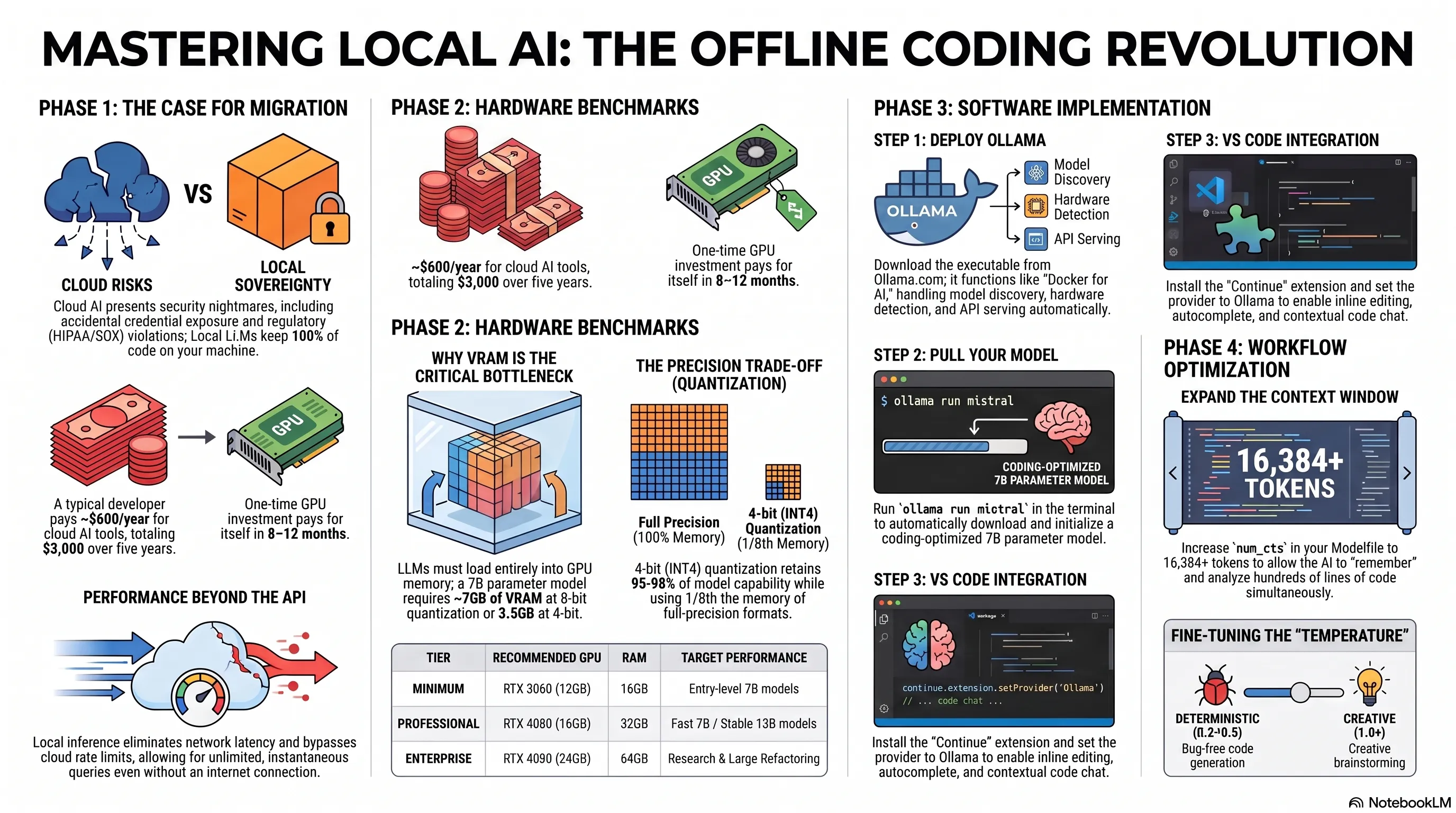
Total annual cost: $600 ($50 per month). Over three years, that's $1,800. Over five years: $3,000. And these are current prices—history shows subscription services tend to increase pricing over time.
Now consider the alternative: invest $400-700 in an NVIDIA RTX 3060 Ti (12GB) or RTX 4060 Ti (16GB). This hardware:
- Has zero recurring costs after purchase
- Provides unlimited inference—no rate limits or usage caps
- Serves multiple purposes: AI development, gaming, 3D rendering, video encoding
- Can be upgraded or resold, retaining some residual value
- Works regardless of internet connectivity or service availability
- Isn't subject to price increases, service discontinuation, or terms of service changes
The breakeven point occurs around month 8-12, depending on your hardware choice. After that, every month represents pure savings. Over five years, the financial advantage of local AI becomes overwhelming.
Real-World ROI Calculation
- Cloud Services (Copilot + ChatGPT): $50/month ($600/year)
- Local Hardware (RTX 4060 Ti): ~$550 (One-time purchase)
- Local AI Cost After Month 10: $0 forever
- Conclusion: Over $2,450 in net savings after 5 years
Performance and Control
Counterintuitively, local inference can actually be faster than cloud API calls in many scenarios:
- Zero Network Latency: Data moves from system RAM to GPU VRAM at gigabytes per second over PCIe, not through the internet at megabits per second. For short queries, this eliminates 100-300ms of round-trip time.
- No Rate Limiting: Cloud APIs impose strict limits—typically 3-5 requests per minute for free tiers, 60-200 for paid plans. Your local model accepts unlimited requests instantaneously.
- Guaranteed Availability: When OpenAI experiences an outage (which happens monthly), your work stops. Local models have 100% uptime as long as your computer runs.
- Complete Customization: You can modify system prompts, adjust temperature and sampling parameters in real-time, and even fine-tune models on your own codebase—something impossible with closed commercial APIs.
For developers working on large refactoring tasks that require hundreds of AI queries, the difference between rate-limited cloud access and unlimited local inference isn't just convenient—it's transformative.
Chapter Two: Hardware Requirements and Model Architecture
Running Large Language Models differs fundamentally from traditional software or even gaming. Understanding the hardware demands helps you make informed purchasing decisions and set realistic performance expectations.
Why VRAM is the Critical Bottleneck
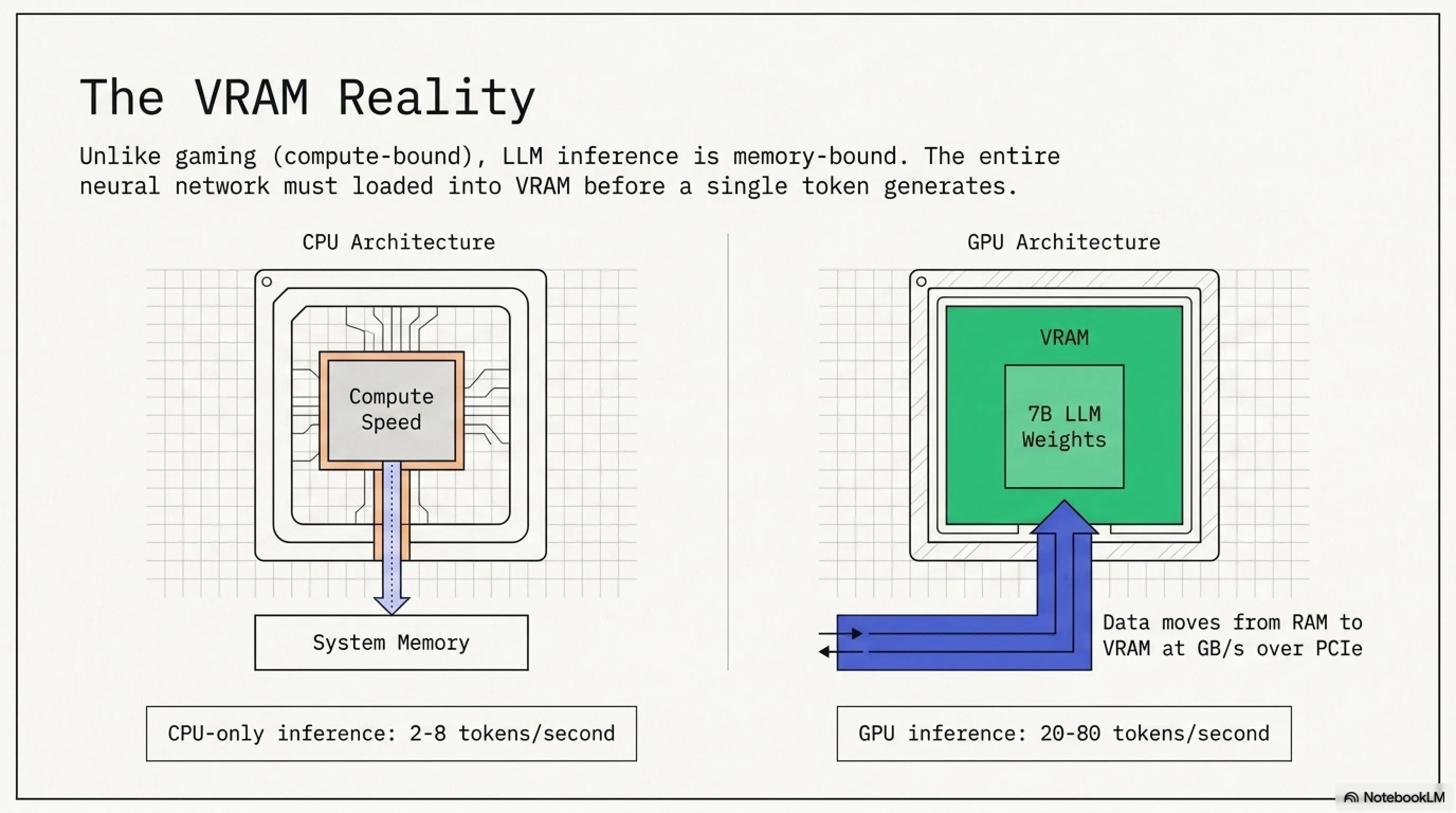
Unlike gaming, where GPU compute power (TFLOPS) matters most, LLM inference is primarily memory-bound. The entire model must be loaded into VRAM before inference can begin. Here's the math:
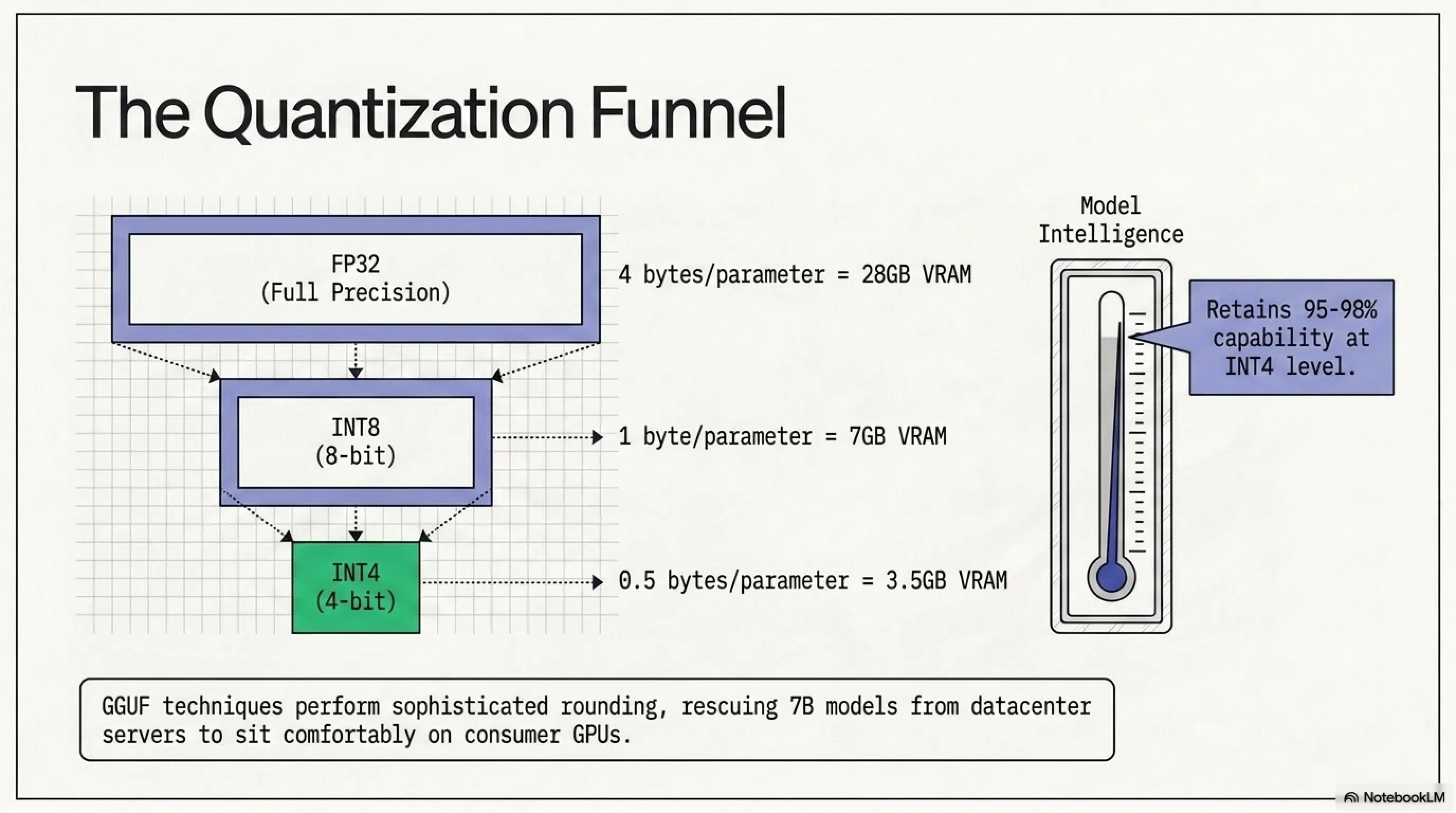
A 7-billion parameter model stores each parameter as a numerical weight. Using different precision formats:
- FP32 (Full Precision): 4 bytes per parameter = 28GB VRAM required
- FP16 (Half Precision): 2 bytes per parameter = 14GB VRAM required
- INT8 (8-bit Quantization): 1 byte per parameter = 7GB VRAM required
- INT4 (4-bit Quantization): 0.5 bytes per parameter = 3.5GB VRAM required
Quantization reduces memory requirements by storing weights with lower precision. Modern quantization techniques (GGUF, GPTQ, AWQ) minimize quality loss—INT4 models typically retain 95-98% of the original model's capabilities while using one-eighth the memory.
This is why a 12GB GPU is considered the minimum for comfortable 7B model usage, while 24GB enables running 13B models or multiple smaller models simultaneously.
Recommended System Specifications
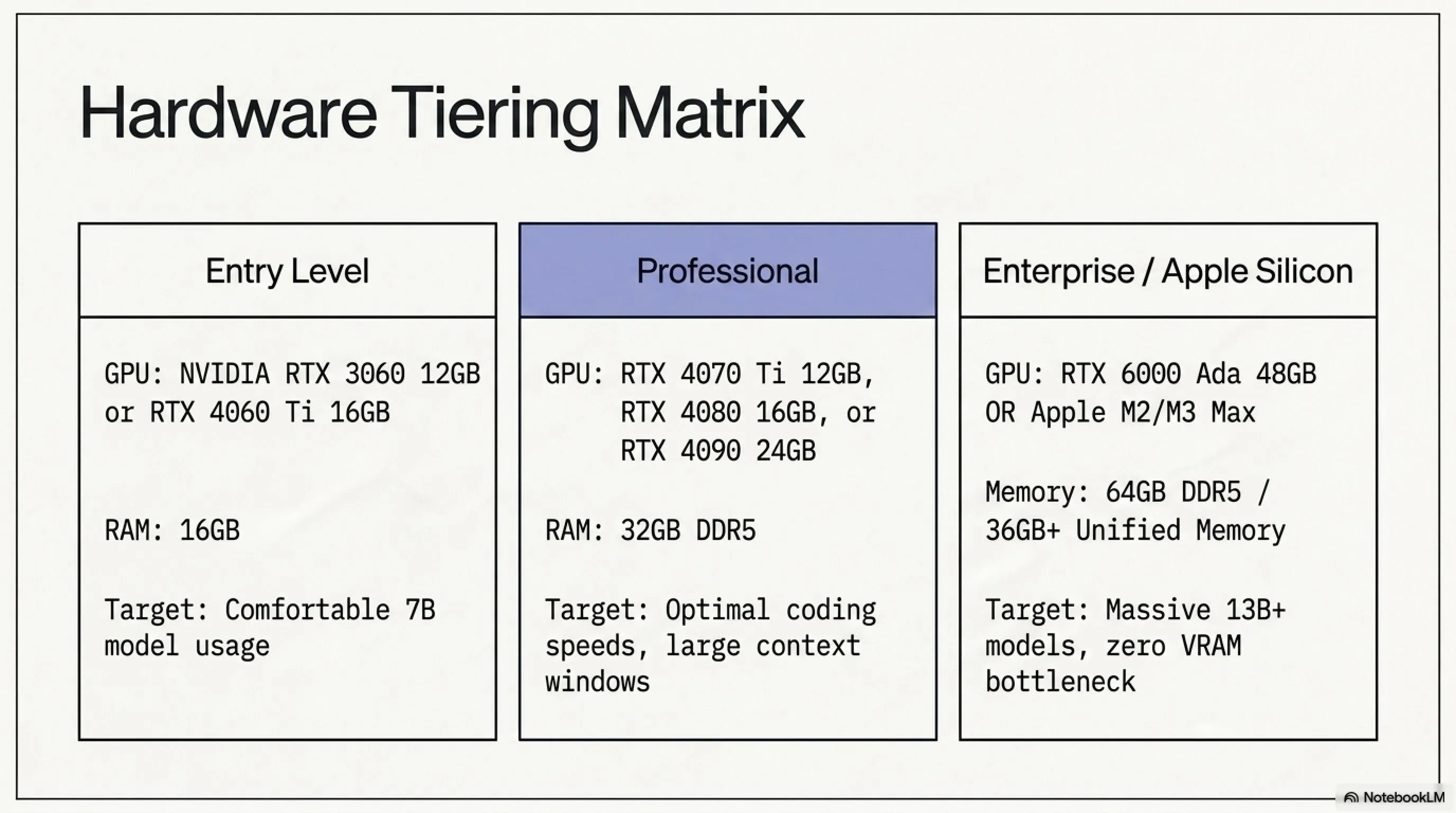
• GPU: NVIDIA RTX 3060 12GB or RTX 4060 Ti 16GB
• RAM: 16GB DDR4/DDR5
• Storage: 50GB free NVMe SSD space
• CPU: Any modern 4-core processor (Intel i5-12400 or AMD Ryzen 5 5600)
• OS: Windows 10/11, Ubuntu 22.04+, or macOS 12+
Recommended Configuration (Professional):
• GPU: RTX 4070 Ti 12GB, RTX 4080 16GB, or RTX 4090 24GB
• RAM: 32GB DDR5
• Storage: 100GB NVMe Gen4 SSD
• CPU: Intel i7-13700K or AMD Ryzen 7 7700X
• OS: Same as above
Optimal Configuration (Enterprise/Research):
• GPU: RTX 4090 24GB or RTX 6000 Ada 48GB
• RAM: 64GB DDR5
• Storage: 250GB NVMe RAID 0
• CPU: Intel i9-14900K or AMD Ryzen 9 7950X3D
Apple Silicon Users:
• M1/M2/M3 with minimum 16GB Unified Memory
• M1 Max/Ultra or M2 Max/Ultra with 32GB+ for larger models
• M3 Max with 36GB+ for optimal performance
Note: Unified Memory on Apple Silicon serves both CPU and GPU, eliminating separate VRAM requirements.
Can You Run This Without a Dedicated GPU?
Yes, but with significant compromises. CPU-only inference is possible using:
- Intel processors: AVX2 and AVX-512 instruction sets accelerate matrix operations
- AMD processors: Similar vector extensions provide modest speedups
- Apple Silicon: M-series chips with Unified Memory architecture perform surprisingly well, often matching entry-level discrete GPUs
However, expect token generation speeds of 2-8 tokens/second on CPU versus 20-80 tokens/second on a mid-range GPU. For learning and experimentation, this is acceptable. For daily professional use, it becomes frustrating quickly.
AMD Radeon RX 6000 and 7000 series GPUs are also supported through ROCm (Radeon Open Compute), though performance and compatibility lag behind NVIDIA's CUDA ecosystem.
Chapter Three: Understanding Ollama and Devstral 2
Just two years ago, running an LLM locally required expertise in Python environments, CUDA toolkit installation, model weight management, and API server configuration. Ollama changed everything by packaging this complexity into a single executable.
What is Ollama and How Does it Work?
Ollama is an open-source platform that manages the entire lifecycle of local LLMs. Think of it as Docker for AI models—it handles downloading, versioning, serving, and hardware optimization automatically.
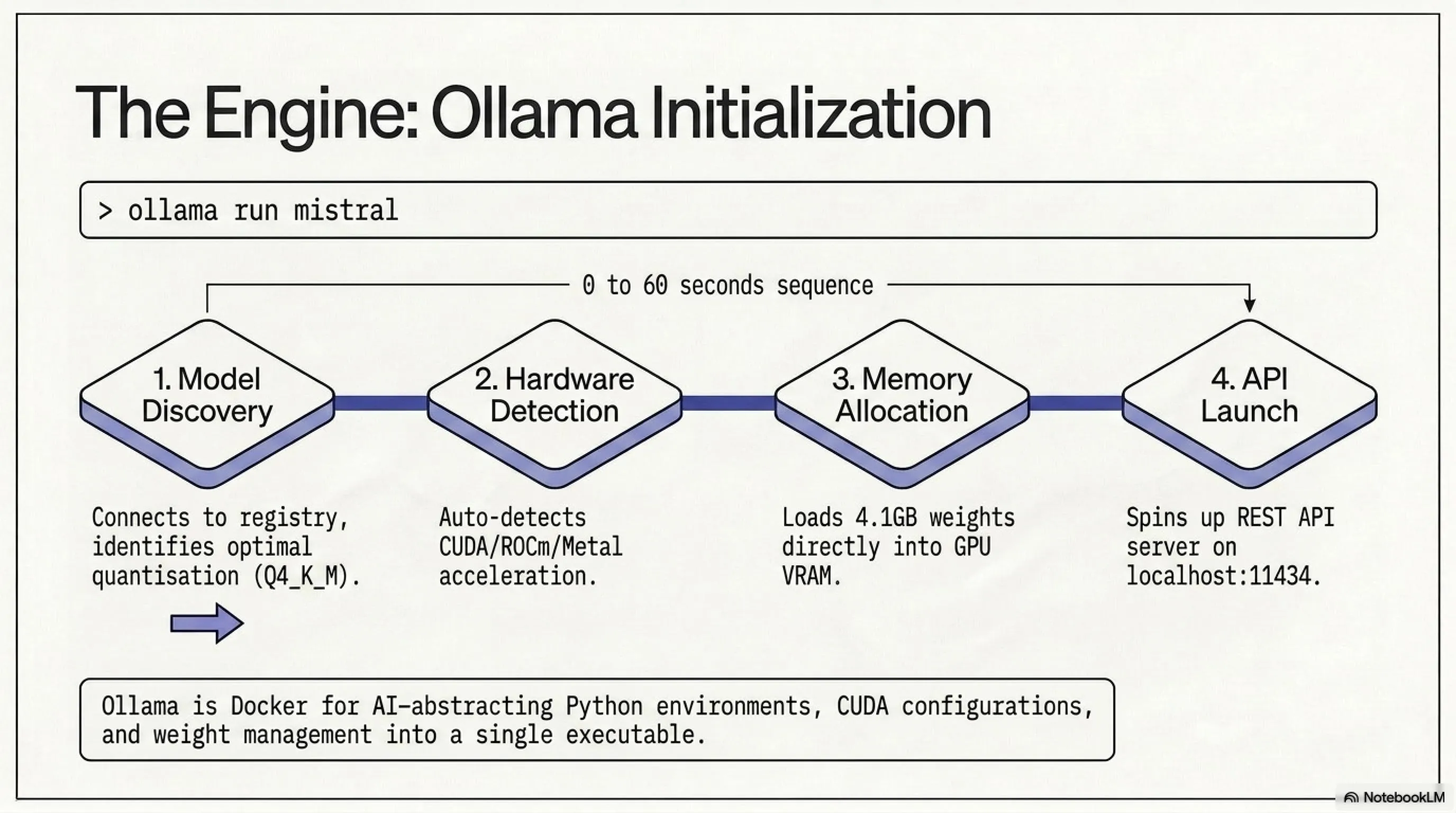
When you run ollama run mistral, the following happens in under 60 seconds:
- Model Discovery: Connects to Ollama's model registry and identifies the latest Mistral version
- Intelligent Download: Pulls the optimal quantized version based on your available VRAM
- Hardware Detection: Auto-detects CUDA/ROCm/Metal acceleration and configures accordingly
- Memory Management: Loads model weights into GPU memory using efficient batching
- API Server: Launches a REST API server on
localhost:11434compatible with OpenAI's API format - Interactive Shell: Provides a command-line chat interface for immediate testing
Ollama abstracts away complexity while remaining fully transparent—advanced users can override every default through Modelfiles (similar to Dockerfiles).
Why Devstral 2 / Mistral for Coding?
The open-source LLM ecosystem offers dozens of models: Meta's Llama 3, Google's Gemma, Microsoft's Phi-3, and specialized coding models like CodeLlama and DeepSeek Coder. Mistral (and its coding-focused variant Devstral) stands out for several reasons:
- Architecture Innovation: Uses Sliding Window Attention (SWA) for better long-context understanding than traditional transformers
- Efficiency: Matches or exceeds 13B models while using only 7B parameters through distillation techniques
- Multilingual Support: Trained on code repositories in 80+ programming languages
- Licensing: Apache 2.0 license permits commercial use without restrictions
- Active Development: Frequent updates from Mistral AI with performance improvements
Model Comparison for Code Generation
- Devstral 2 (Tekin Recommended): 7B Params | Min 8GB VRAM | Score: 9.0/10
- Mistral 7B v0.3: 7B Params | Min 8GB VRAM | Score: 8.5/10
- DeepSeek Coder 6.7B: 6.7B Params | Min 8GB VRAM | Score: 8.2/10
- Llama 3 8B Instruct: 8B Params | Min 10GB VRAM | Score: 7.5/10
- CodeLlama 7B: 7B Params | Min 8GB VRAM | Score: 7.0/10
While DeepSeek Coder achieves higher benchmark scores, Mistral/Devstral offers better general-purpose capabilities—useful when you need explanations, documentation, or non-code tasks. For pure code completion, DeepSeek is worth testing alongside Mistral.
Chapter Four: Step-by-Step Ollama Installation
Let's get hands-on. This walkthrough assumes Windows 10/11, but the process is nearly identical on macOS and Linux.
Step 1: Downloading and Installing Ollama
- Navigate to Ollama.com in your web browser
- Click the large "Download for Windows" button (macOS and Linux users will see appropriate versions)
- The installer (~500MB) will download. Once complete, launch the executable
- Accept the User Account Control prompt if it appears
- Installation completes automatically in 15-30 seconds—no configuration dialogs
- Look for the Ollama llama icon in your system tray (bottom-right on Windows, top-right on macOS)
That's genuinely it. No Python virtual environments, no CUDA driver manual installation, no PATH configuration. Ollama handles everything.
Step 2: Verifying Installation
Open a terminal window:
- Windows: Press
Win + R, typecmd, hit Enter - macOS: Press
Cmd + Space, typeterminal, hit Enter - Linux: Press
Ctrl + Alt + T
Type this command and press Enter:
ollama --version
You should see output like: ollama version 0.1.48
If you get an error like 'ollama' is not recognized, restart your terminal (or reboot your computer) to refresh environment variables. In rare cases, you may need to add Ollama to your PATH manually.
Troubleshooting: Command Not Found
ollama command isn't recognized after installation:Windows:
1. Open Start Menu, search for "Environment Variables"
2. Select "Edit the system environment variables"
3. Click "Environment Variables" button
4. Under System variables, find and edit "Path"
5. Add new entry:
C:\Users\[YourUsername]\AppData\Local\Programs\Ollama6. Click OK, close and reopen your terminal
macOS/Linux:
Add to your
~/.bashrc or ~/.zshrc:export PATH=$PATH:/usr/local/bin/ollamaThen run:
source ~/.bashrc (or ~/.zshrc)Chapter Five: Downloading and Running Your First Model
With Ollama installed, you're ready to download a model. We'll start with Mistral—the base model that Devstral is built upon.
Pulling the Model
In your terminal, execute:
ollama run mistral
This single command initiates a sequence of operations:
- Registry Check: Connects to Ollama's CDN to fetch model metadata
- Size Calculation: Determines optimal quantization level for your GPU (typically Q4_K_M for 8-12GB cards)
- Download: Pulls approximately 4.1GB of model weights (time varies by connection speed—typically 5-30 minutes)
- Verification: Checksums downloaded files to ensure integrity
- Loading: Maps model into GPU VRAM (takes 10-30 seconds depending on hardware)
- Initialization: Starts REST API server on port 11434
- Shell Launch: Opens an interactive chat interface
Progress is displayed with a visual progress bar. On a 100Mbps connection, expect the download to complete in roughly 5-8 minutes.
Your First Interaction
Once the model loads, you'll see a prompt: >>>
Try this query:
>>> Write a Python function to calculate Fibonacci numbers using memoization
Watch as code materializes character-by-character. You're witnessing a 7-billion parameter neural network running entirely on your hardware, generating syntactically correct, idiomatic code without touching the internet.
To exit the chat interface, type /bye or press Ctrl + D.
Jargon Buster: What is Quantization?
Quantization reduces precision to save memory:
• FP16: 16-bit floats → 14GB required (minimal quality loss)
• INT8: 8-bit integers → 7GB required (~2-5% quality loss)
• INT4: 4-bit integers → 3.5GB required (~5-10% quality loss)
Modern techniques like GGUF (GPT-Generated Unified Format) use sophisticated rounding that preserves model capabilities remarkably well. INT4 quantization makes the difference between unusable (28GB) and practical (4GB) on consumer hardware.
Ollama automatically selects the best quantization for your VRAM, but you can override this manually for quality vs. memory tradeoffs.
Manual Quantization Selection
If you want explicit control over model quantization, use these commands:
ollama run mistral:7b-instruct-q4_K_M→ 4-bit (4GB, fastest, slight quality reduction)ollama run mistral:7b-instruct-q5_K_M→ 5-bit (5GB, balanced)ollama run mistral:7b-instruct-q8_0→ 8-bit (7GB, highest quality, slower)
For most users with 8-12GB VRAM, q4_K_M provides the best experience. Only those with 16GB+ should consider q8_0 for daily use.
Chapter Six: VS Code Integration - The Real Power
Terminal-based chat is educational, but the true value emerges when your AI assistant integrates directly into your development environment, providing real-time suggestions, refactoring assistance, and instant documentation.
Installing the Continue Extension
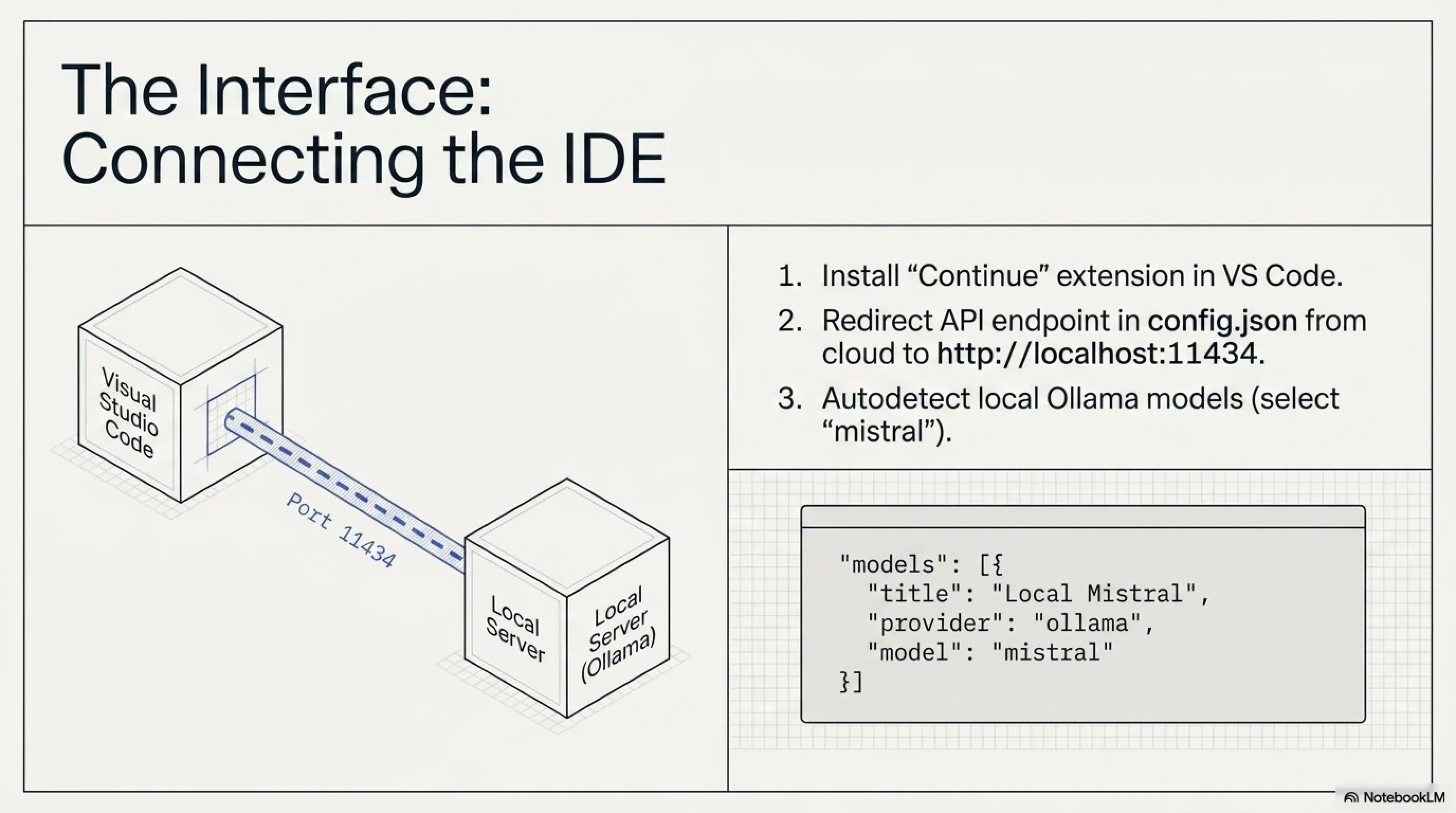
Continue is an open-source VS Code extension specifically designed for local LLM integration. Unlike GitHub Copilot's closed ecosystem, Continue works with any OpenAI-compatible API—including Ollama.
- Launch Visual Studio Code
- Open the Extensions panel (click the building blocks icon in the left sidebar, or press
Ctrl + Shift + X) - Search for "Continue" in the search bar
- Locate the extension titled "Continue - Codestral, Claude, and more" by Continue
- Click Install
- After installation (~5 seconds), the Continue icon appears in the left activity bar
Connecting Continue to Ollama
Out of the box, Continue tries to use cloud APIs. We need to redirect it to your local Ollama instance:
- Click the Continue icon in the sidebar to open the chat panel
- At the bottom of the panel, click the model name dropdown (probably shows "GPT-4" or similar)
- Select "Add Model" or click the gear icon for settings
- Continue will open its
config.jsonfile in the editor - Locate the
"models"array and add this configuration:
Alternatively, Continue offers an Autodetect feature that scans localhost:11434 and automatically adds available Ollama models. For most users, this is the simplest approach:
- In Continue's settings, click "Autodetect Local Models"
- Continue will find your Mistral model and add it to the available models list
- Select "mistral" from the model dropdown
Your New Superpowers
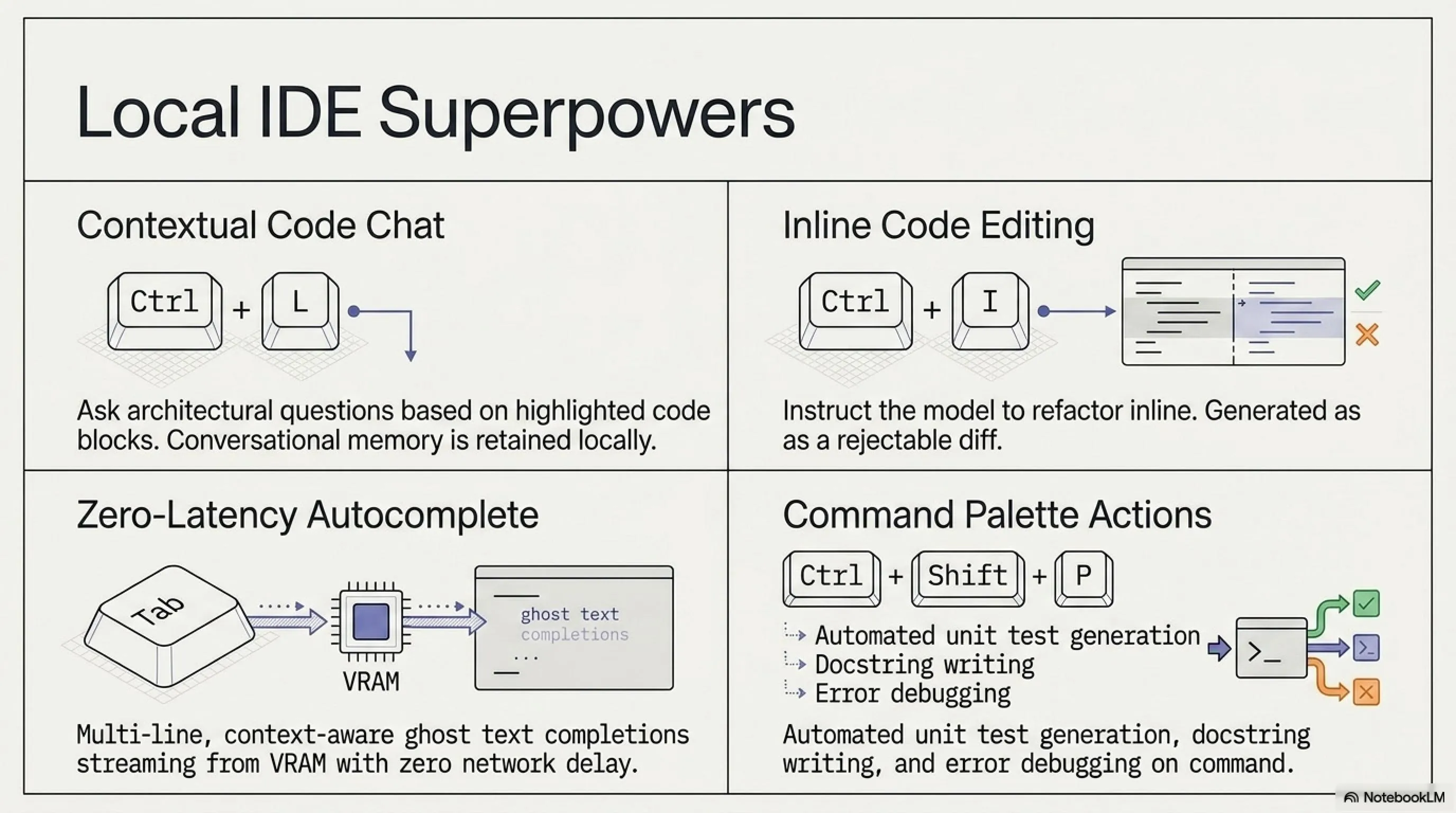
With Continue connected to Ollama, you gain these capabilities:
1. Contextual Code Chat:
- Highlight a function or code block
- Press
Ctrl + L(Windows/Linux) orCmd + L(macOS) - Ask: "What's the time complexity of this algorithm?" or "How can I optimize this?"
- The AI analyzes your selected code and provides context-aware responses
- Follow-up questions maintain conversation context
2. Inline Code Editing:
- Select code you want to modify
- Press
Ctrl + I(orCmd + I) - Give instructions: "Convert this to async/await" or "Add error handling with try-catch"
- Continue generates the modified code inline as a diff
- Accept the change with
Tabor reject withEsc
3. Autocomplete Suggestions:
- As you type code, Continue analyzes context and generates ghost text completions
- Suggestions appear in gray after a short delay (configurable, default ~300ms)
- Press
Tabto accept, or keep typing to ignore - Unlike basic autocomplete, these are multi-line, context-aware suggestions
- The model considers your entire file, imports, and recent changes
4. Command Palette Actions:
- Press
Ctrl + Shift + P(orCmd + Shift + P) to open the command palette - Type "Continue" to see available actions:
- Continue: Explain Code - Get detailed explanations of selected code
- Continue: Generate Unit Tests - Create test cases automatically
- Continue: Generate Docstring - Add documentation to functions
- Continue: Fix Code - Attempt to debug errors in selected code
Essential Keyboard Shortcuts
- Chat with selected code:
Ctrl + L(Mac:Cmd + L) - Inline code edit:
Ctrl + I(Mac:Cmd + I) - Accept suggestion:
Tab - Reject suggestion:
Esc - Toggle autocomplete:
Ctrl + Shift + A
📚 Classified & Related Dossiers in TekinGame
If you wish to explore beyond this report and delve into cybernetic frontiers and autonomous AI architectures, do not miss these three exclusive deep-dives in the Tekin Garage:
Chapter Seven: Advanced Configuration and Optimization
Now that your basic setup works, let's tune it for maximum performance and capability.
Expanding the Context Window
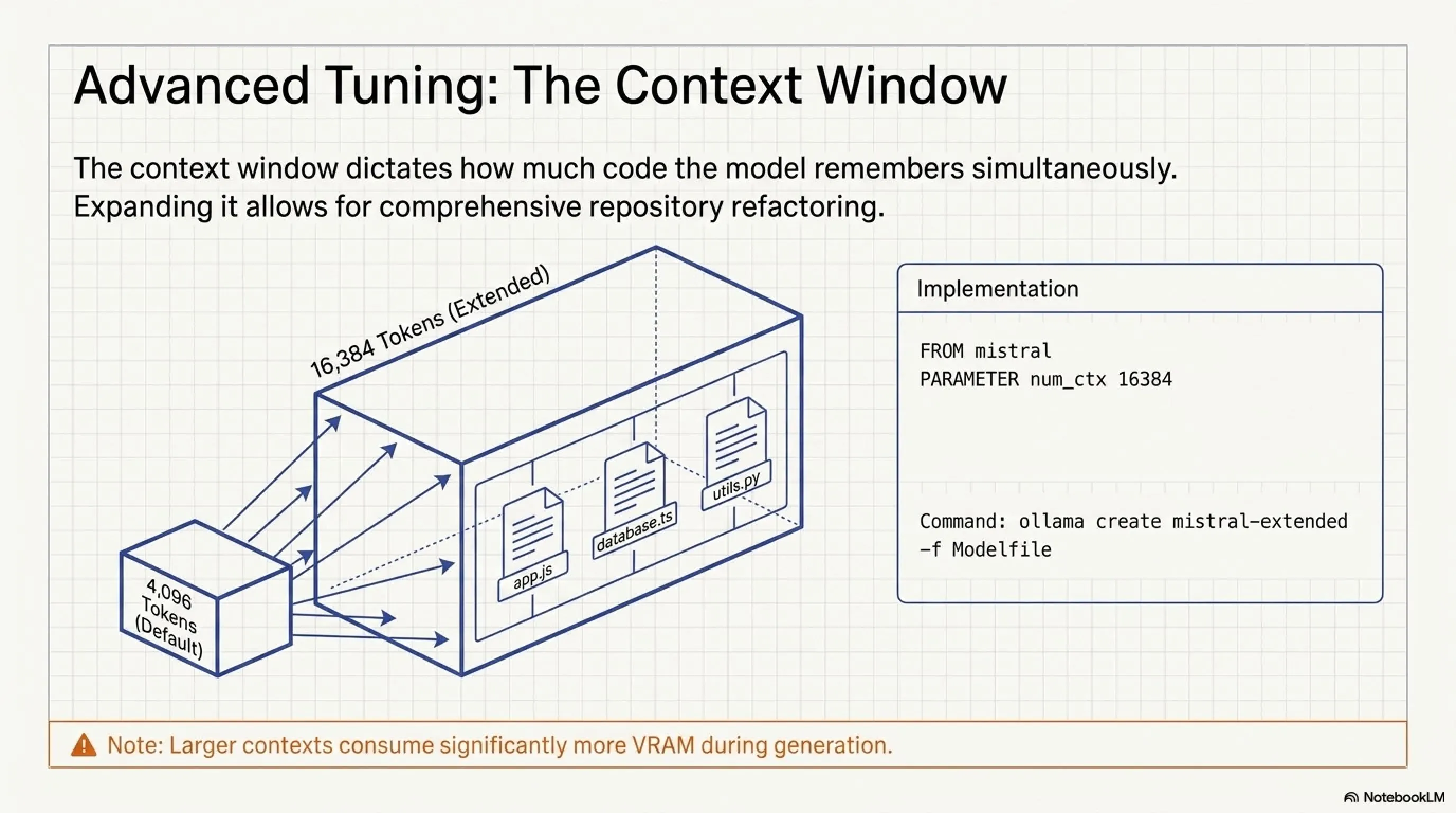
The context window determines how much conversation history and code the model can "remember" during a session. Mistral's default is 4,096 tokens (roughly 3,000 words or 200-300 lines of code).
For complex refactoring tasks requiring the model to understand multiple files, a larger context window is invaluable. Modern GPUs with 12GB+ VRAM can handle 16,384 or even 32,768 tokens.
To increase context window:
- Create a file named
Modelfile(no extension) in any directory - Add these contents:
FROM mistral
PARAMETER num_ctx 16384
PARAMETER temperature 0.7
PARAMETER repeat_penalty 1.1
- In your terminal, navigate to the directory containing the Modelfile
- Run:
ollama create mistral-extended -f Modelfile - Wait 5-10 seconds while Ollama creates the custom model
- In Continue's config, change the model name to "mistral-extended"
You've now created a customized model variant with 4x the memory. This allows you to paste entire classes or modules and ask comprehensive questions.
Crafting Effective System Prompts
The system prompt is a persistent instruction that shapes the model's behavior and output style. Think of it as setting your AI pair programmer's personality and expertise level.
For Clean Code Practices:
"You are a senior software engineer who prioritizes code readability, maintainability, and adherence to SOLID principles. Always include clear variable names, meaningful comments, and consider edge cases. When suggesting refactoring, explain the reasoning behind architectural choices."
For Speed and Conciseness:
"You are a code generator focused on efficiency. Provide only working code without lengthy explanations unless explicitly requested. Prioritize performance and minimize boilerplate. Use modern language features and idiomatic patterns."
For Learning and Education:
"You are a patient programming instructor. Break down complex concepts into simple explanations using analogies. Provide step-by-step implementations with inline comments explaining each section. Suggest additional learning resources when relevant."
For Security-Conscious Development:
"You are a security-aware senior developer. Always consider potential vulnerabilities like SQL injection, XSS, CSRF, and insecure deserialization. Suggest input validation, sanitization, and defensive programming patterns. Flag dangerous functions or libraries."
To set a system prompt in Continue, add this to your config.json:
"systemMessage": "Your chosen prompt here"
inside the model configuration object.
Tuning Generation Parameters
Several parameters control the randomness and style of generated code:
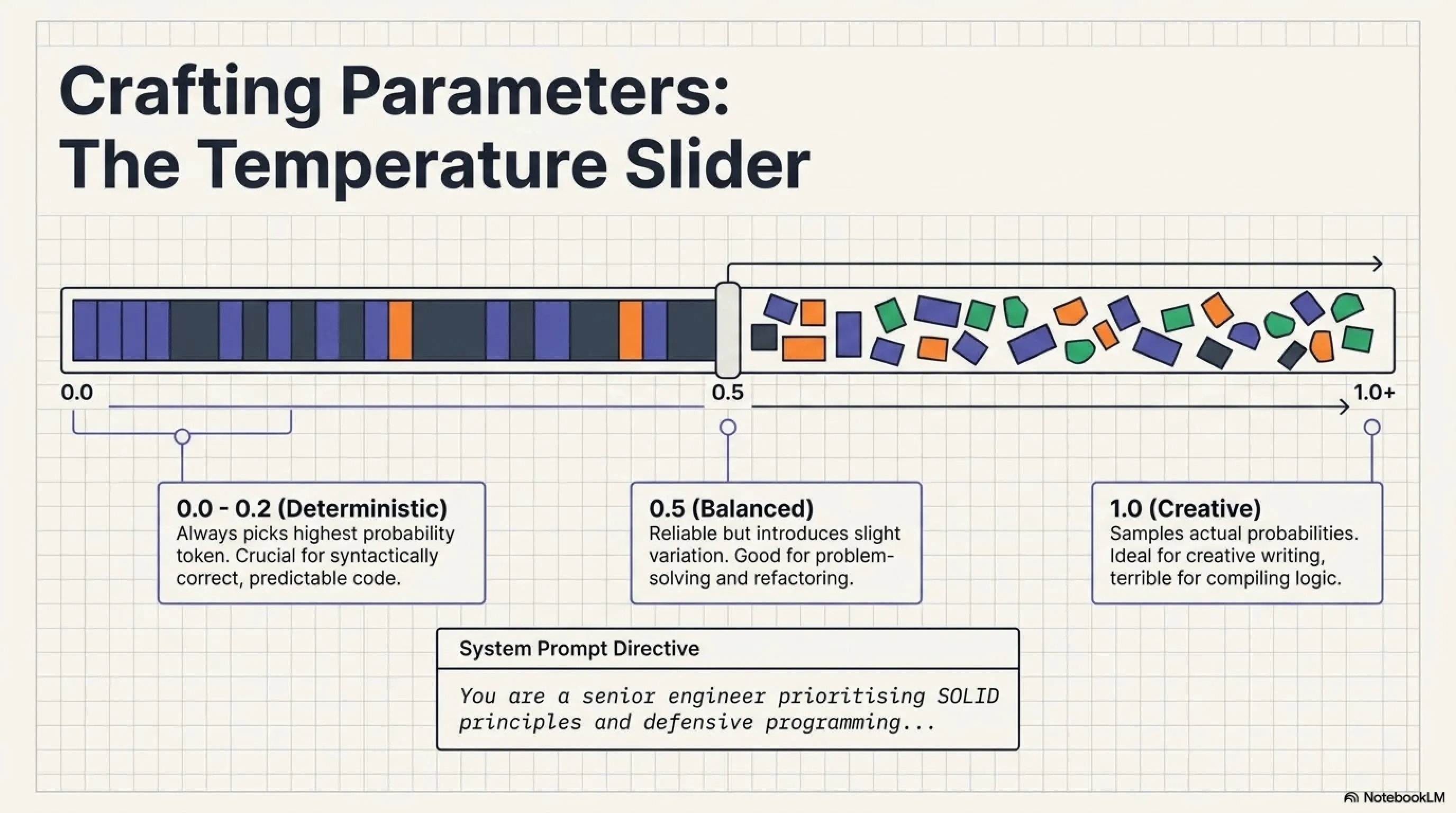
- temperature (0.0 to 2.0): Controls creativity vs. determinism. Lower = more predictable and conservative. Higher = more creative but potentially incorrect. Recommended for code: 0.2-0.5
- top_p (0.0 to 1.0): Alternative to temperature, controls diversity via nucleus sampling. Recommended: 0.9
- top_k (integer): Limits consideration to the top K most probable tokens. Recommended: 40-50
- repeat_penalty (1.0 to 2.0): Penalizes repetition. Too high causes incoherent output. Recommended: 1.05-1.15
- num_predict (integer): Maximum tokens to generate. Recommended: 512-1024 for code
Add these to your Modelfile:
PARAMETER temperature 0.3
PARAMETER top_p 0.9
PARAMETER top_k 40
PARAMETER repeat_penalty 1.1
PARAMETER num_predict 1024
Jargon Buster: Understanding Temperature
• mat: 65%
• floor: 20%
• chair: 10%
• roof: 4%
• moon: 1%
Temperature = 0: Always picks highest probability (mat). Output is deterministic and repetitive.
Temperature = 0.5: Usually picks mat, sometimes floor. Output is reliable but has variation.
Temperature = 1.0: Samples according to actual probabilities. Balanced creativity.
Temperature = 1.5: Flattens distribution—"moon" becomes more likely. Output is creative but potentially nonsensical.
For code generation, low temperature (0.2-0.5) is crucial because we want syntactically correct, predictable output. For creative writing or brainstorming, higher temperatures (0.8-1.2) work better.
Technical note: Temperature divides logits before softmax, mathematically flattening or sharpening the probability distribution.
Chapter Eight: Beyond VS Code - Other IDE Integrations
Continue and Ollama aren't limited to VS Code. Here's how to use your local AI with other development environments.
JetBrains IDEs (IntelliJ IDEA, PyCharm, WebStorm, GoLand)
Continue offers a native plugin for JetBrains products:
- Open your JetBrains IDE (IntelliJ IDEA, PyCharm, etc.)
- Navigate to Settings → Plugins
- Search for "Continue" in the Marketplace
- Click Install and restart the IDE
- Configure it identically to VS Code—point to
http://localhost:11434
The functionality mirrors VS Code: inline suggestions, chat panel, and keyboard shortcuts (adapted to JetBrains conventions).
Cursor Editor
Cursor is an AI-first code editor built on VS Code's foundation. It has native AI features that can be redirected to Ollama:
- Download Cursor from cursor.sh
- Open Settings → Advanced → Model Settings
- Change the API endpoint from OpenAI to
http://localhost:11434/v1 - Set the model name to "mistral" or your chosen Ollama model
- Cursor's native features (Cmd+K, Cmd+L) now route to your local LLM
Neovim / Vim
For terminal-based editors, several plugins integrate with Ollama:
- gen.nvim: Lua-based plugin for Neovim with inline generation
- ollama.vim: Classic Vim plugin supporting Ollama's API
- codeium.vim: Can be configured to use local endpoints
Installation typically involves adding the plugin to your Neovim config (init.lua) and configuring the Ollama endpoint.
Direct API Usage
Ollama exposes a REST API compatible with OpenAI's format. You can integrate it into custom tools, scripts, or workflows:
Simple cURL example:
curl http://localhost:11434/api/generate -d '{
  "model": "mistral",
  "prompt": "Write a Rust function to parse JSON",
  "stream": false
}'
Python example:
import requests

response = requests.post('http://localhost:11434/api/generate',
  json={
    "model": "mistral",
    "prompt": "Explain quicksort algorithm",
    "stream": False
  })

print(response.json()['response'])
This flexibility lets you build custom integrations—CI/CD pipelines that generate documentation, pre-commit hooks that review code, or build scripts that suggest optimizations.
Chapter Nine: Comparing Local LLM Platforms
Ollama isn't the only game in town. Let's compare it against other popular local LLM platforms to help you make an informed choice.
Comprehensive Platform Comparison
- Ollama: CLI Interface | Fastest Inference | Built-in API | Best for Pro Developers
- LM Studio: Polished GUI | Fast Inference | Manual Model Management | Best for GUI Users
- Jan: Clean GUI | Medium Speed | No Built-in API | Good for Quick Testing
Chapter Ten: Troubleshooting Common Issues
Even with straightforward installation, you might encounter challenges. Here are the most common issues and their solutions.
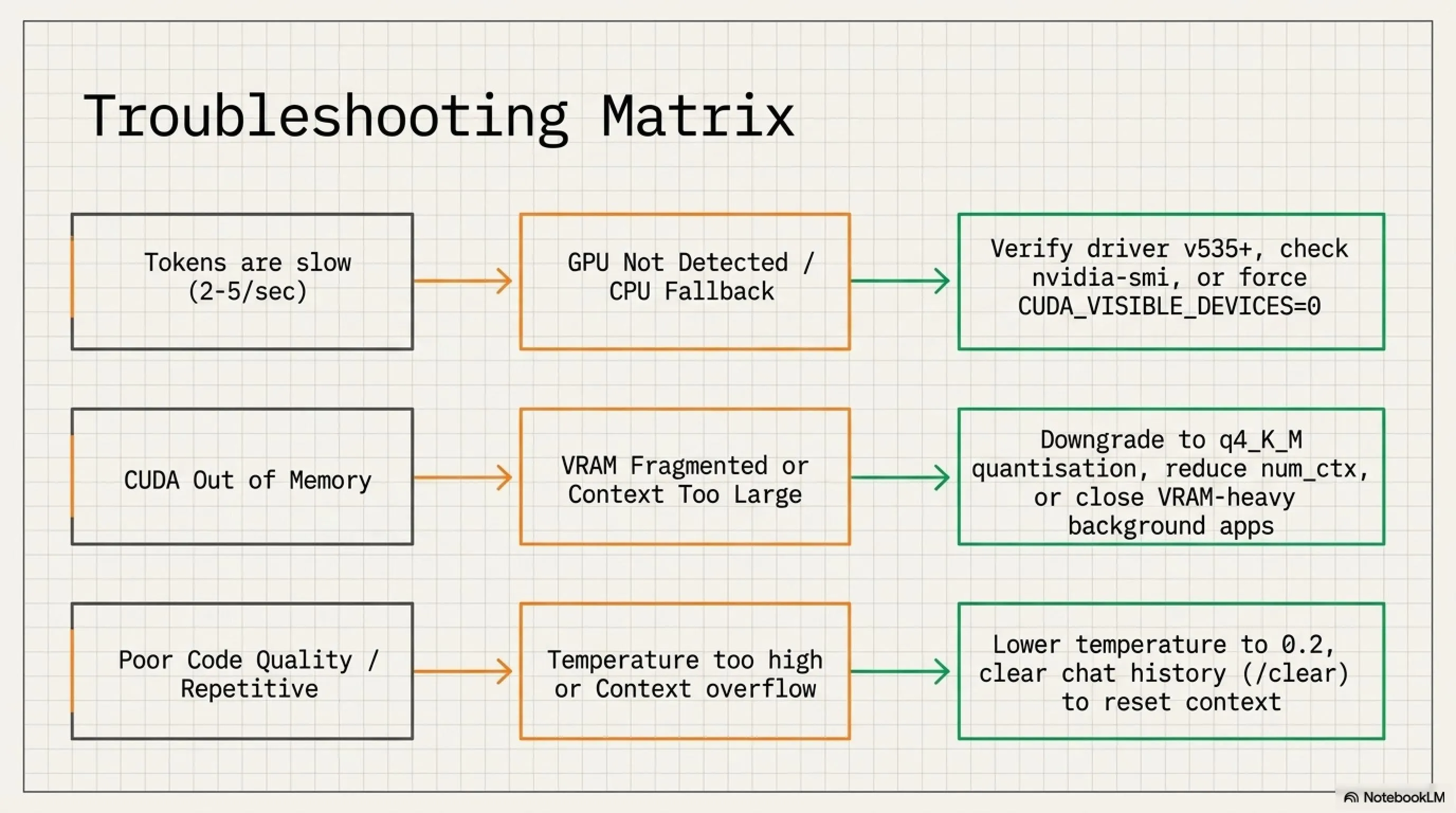
Issue #1: GPU Not Detected
Symptoms: Model runs on CPU with slow token generation (2-5 seconds per token instead of 20-80 tokens/second).
Solutions:
- Verify NVIDIA drivers are current: Download the latest from NVIDIA's official site. Driver version should be 535+ for best compatibility.
- Confirm CUDA Toolkit is installed: Open terminal and run
nvidia-smi. You should see your GPU listed with driver version, temperature, and memory usage. If this command fails, CUDA isn't properly configured. - Check GPU assignment: If you have multiple GPUs (integrated + discrete), ensure applications use the dedicated GPU. In Windows, go to Settings → Display → Graphics Settings and set Ollama to "High Performance".
- Set CUDA device explicitly: Create environment variable
CUDA_VISIBLE_DEVICES=0to force Ollama to use the first GPU (change number for multi-GPU systems). - Restart Ollama service: After driver updates, close Ollama completely (check system tray) and restart it to reload GPU drivers.
Issue #2: Out of Memory Errors
Symptoms: Model loads initially but crashes with "CUDA out of memory" or "RuntimeError: CUDA error" after several generations.
Solutions:
- Switch to a smaller quantization: If using
q8_0(8-bit), downgrade toq4_K_M(4-bit) which uses half the VRAM. - Reduce context window: If you increased
num_ctxto 16384 or 32768, try 8192 or 4096. Larger contexts consume significantly more memory during generation. - Close GPU-heavy applications: Background applications like games, 3D software, or browsers with hardware acceleration can fragment VRAM. Close everything except your IDE and Ollama.
- Use single model at a time: Running multiple models simultaneously multiplies VRAM usage. Stick to one active model.
- Enable system RAM offloading: In your Modelfile, add
PARAMETER num_gpu 24(adjust number based on your VRAM—use lower values to offload more to system RAM). - Monitor VRAM usage: Use
nvidia-smi -l 1to watch real-time VRAM consumption and identify what's consuming memory.
Issue #3: Continue Extension Not Working
Symptoms: No autocomplete suggestions appear, chat panel doesn't respond, or requests time out.
Solutions:
- Verify Ollama is running: Look for the Ollama icon in your system tray. If absent, launch Ollama manually.
- Test API endpoint: Open a browser and navigate to
http://localhost:11434. You should see "Ollama is running" message. If the page doesn't load, Ollama's API server didn't start correctly. - Check Continue configuration: Open Continue's
config.jsonand verify the model configuration has correctapiBase(http://localhost:11434) andmodelname matches what's inollama list. - Restart VS Code: Sometimes extensions need a fresh start. Use
Ctrl + Shift + P→ "Developer: Reload Window". - Check firewall settings: Windows Firewall or third-party security software might block localhost connections. Add an exception for Ollama and VS Code.
- Review extension logs: Open VS Code's Output panel (
View → Output), select "Continue" from the dropdown, and look for error messages indicating what's failing. - Reinstall Continue: Uninstall the extension, restart VS Code, and reinstall. Sometimes cached configuration causes persistent issues.
Issue #4: Poor Code Quality
Symptoms: Generated code has bugs, doesn't match requirements, or is syntactically incorrect.
Solutions:
- Upgrade to a larger model: 7B models have limitations. Try
ollama pull mixtral:8x7b(requires 24GB+ VRAM) orllama3:13b(requires 16GB+ VRAM) for dramatically better reasoning. - Improve prompt specificity: Instead of "write a sort function", try "write a stable merge sort function for an array of integers in Python 3.11 with type hints and docstrings, handling edge cases like empty arrays".
- Optimize system prompt: Explicitly request test coverage, error handling, and documentation in your system prompt.
- Lower temperature: Reduce from default 0.7-0.8 to 0.2-0.3 for more deterministic, conservative code generation.
- Provide more context: Include relevant imports, class definitions, or surrounding code so the model understands your codebase's patterns and conventions.
- Iterate and refine: Use the generated code as a starting point. Ask follow-up questions like "add error handling" or "optimize for performance".
- Try specialized models: For specific languages, use domain-specific models like
codellama:pythonordeepseek-coder.
Issue #5: Download Interruptions
Symptoms: ollama pull starts downloading but stops partway, shows network errors, or appears frozen.
Solutions:
- Ensure sufficient disk space: Models require 4-20GB depending on size. Check you have at least 50GB free on the installation drive.
- Verify internet stability: Ollama downloads large files (4GB+). Unstable connections cause failures. Consider downloading during off-peak hours or using wired ethernet instead of Wi-Fi.
- Resume interrupted downloads: Ollama automatically resumes from the last checkpoint. Simply run the same
ollama pullcommand again. - Change VPN server: If using a VPN, some servers have bandwidth restrictions. Try different servers or temporarily disable VPN during download.
- Clear partial downloads: If a model is corrupted, run
ollama listto see partial downloads, thenollama rm [model_name]to delete and retry from scratch. - Use a download manager: For extremely slow or unstable connections, download the model manually from Ollama's model library, then import it locally.
Issue #6: Slow Performance Despite Good Hardware
Symptoms: RTX 3080/4080 generates only 10-15 tokens/second when it should achieve 40-60+.
Solutions:
- Check thermal throttling: Run
nvidia-smi dmonto monitor GPU temperature and clock speeds. If temp exceeds 80°C, GPU may be throttling. Improve case airflow or adjust fan curves. - Verify PCIe link speed: Run
nvidia-smi -q | findstr "Width"(Windows) ornvidia-smi -q | grep "Width"(Linux/Mac). Should show "x16" for full bandwidth. If showing x8 or x4, reseat the GPU or use a different PCIe slot. - Disable power saving: In NVIDIA Control Panel, set "Power Management Mode" to "Prefer Maximum Performance" instead of "Adaptive".
- Update Ollama: Run
ollama --versionand compare to the latest version on Ollama's website. Updates often include performance optimizations. - Profile with better quantization: Sometimes INT4 is actually slower than INT8 due to de-quantization overhead on certain GPUs. Test different quantizations (
q4_K_Mvsq5_K_Mvsq8_0) to find the fastest for your hardware.
Advanced Debugging Tips
• Windows:
%LOCALAPPDATA%\Ollama\logs\• macOS:
~/.ollama/logs/• Linux:
~/.ollama/logs/ or journalctl -u ollamaEnable Debug Logging:
Set environment variable
OLLAMA_DEBUG=1 before starting Ollama for verbose output.Test API Health:
curl http://localhost:11434/api/tagsShould return JSON with list of installed models.
Force CPU Mode (for testing):
CUDA_VISIBLE_DEVICES=-1 ollama run mistralCheck Model Integrity:
ollama show mistral --modelfileDisplays model configuration and verifies it loaded correctly.
Chapter Eleven: Real-World Performance Metrics
Let's establish realistic expectations with actual benchmarks from various hardware configurations.
Token Generation Speed Benchmarks
- Intel i7-12700K (CPU only): Mistral 7B (Q4) | 3-5 tokens/sec | 20-33s per 100 tokens
- M1 Mac Mini (16GB): Mistral 7B (Q4) | 12-18 tokens/sec | 5.5-8.3s per 100 tokens
- RTX 3060 12GB: Mistral 7B (Q4) | 22-28 tokens/sec | 3.6-4.5s per 100 tokens
- RTX 4070 Ti 12GB: Mistral 7B (Q4) | 45-55 tokens/sec | 1.8-2.2s per 100 tokens
- RTX 4090 24GB: Mistral 7B (Q8) | 80-110 tokens/sec | 0.9-1.25s per 100 tokens
- M2 Ultra Mac Studio (64GB): Llama 3 70B (Q4) | 25-35 tokens/sec | 2.8-4.0s per 100 tokens
Benchmarks measured using default context window (4096 tokens). Actual performance varies based on prompt length, system load, and thermal conditions. Tested July 2026.
- Zero recurring costs after initial hardware investment
- Complete privacy - no code ever leaves your machine
- No rate limits or usage caps whatsoever
- Faster than cloud APIs for many use cases (no network latency)
- Works 100% offline after model download
- Full control over models, prompts, and parameters
- Open-source ecosystem with transparent development
- Supports multiple IDEs and editors
- Can run on Apple Silicon Macs effectively
- Hardware retains resale value unlike subscriptions
- Requires powerful GPU (RTX 3060+ recommended for good experience)
- Initial investment is high ($400-1500 for suitable GPU)
- Power consumption: 150-350W under load increases electricity costs
- Model quality lags behind GPT-4/Claude Opus/Gemini Ultra
- Setup requires technical knowledge compared to cloud services
- Larger models (13B+) need 16-24GB VRAM
- Limited multilingual support compared to commercial models
- Manual model updates required (not automatic)
- Incompatibility with some enterprise tools expecting cloud APIs
- Thermal management becomes critical for sustained use
Conclusion: Reclaiming AI Sovereignty
You're no longer dependent on external APIs that can change pricing, modify terms of service, experience outages, or potentially leak proprietary code. You own the entire stack. Your intellectual property stays on your SSD. Your development velocity isn't throttled by rate limits. Your workflow doesn't break when the internet goes down or a cloud provider has an incident.
Is this approach perfect? No. Local 7B models can't match GPT-4's reasoning capabilities or handle tasks requiring world knowledge from 2025-2026. They sometimes generate buggy code, especially for complex algorithms. The initial setup requires some technical literacy and financial investment. But for the core use case—autocomplete, refactoring, documentation, and explaining existing code—local models have reached the threshold of good enough. And in many scenarios involving repetitive coding tasks or sensitive codebases, they're not just good enough—they're superior.
The Tekin Gaming Bottom Line: If you're a professional developer who codes 20+ hours per week, the ROI is undeniable. Within 6-12 months, you'll have saved enough on subscriptions to justify the GPU purchase. If you work on proprietary systems, in regulated industries, or in regions with internet restrictions, local AI isn't optional—it's the only sustainable path forward. Start with Mistral 7B on whatever hardware you have. You'll likely find yourself reaching for cloud APIs less and less, until one day you realize you haven't logged into ChatGPT in weeks. That's when you know you've successfully reclaimed your AI sovereignty.
Frequently Asked Questions
Can I use this for commercial projects?
Absolutely. Ollama is MIT licensed, and most open-source models (Mistral, Llama 3) use Apache 2.0 or similar permissive licenses that explicitly allow commercial use. Always verify the specific license for any model you deploy, but the major ones have no restrictions on commercial usage, revenue generation, or deployment scale.
How many models can I keep installed?
As many as your storage allows. Each 7B model consumes 4-7GB of disk space. You could easily store 10-20 models on a 500GB drive. However, only one model loads into VRAM at a time during use. Ollama automatically unloads idle models to free memory when you switch.
Will my AMD Radeon GPU work?
Yes! Ollama supports AMD GPUs through ROCm (Radeon Open Compute). RX 6000 and 7000 series cards work well, especially on Linux where ROCm support is mature. Windows support exists but may require manual ROCm driver installation. Performance typically trails NVIDIA equivalents by 10-20% due to less mature software optimization.
What's the actual inference speed? How long for a 50-line function?
With an RTX 3060, expect 20-25 tokens/second, meaning a 50-line function (~300 tokens) takes 12-15 seconds. An RTX 4090 can hit 80-110 tokens/second, generating the same function in 3-4 seconds. For comparison, ChatGPT API typically delivers 30-50 tokens/second including network latency.
Can I run this on a laptop?
Yes, but with caveats. Gaming laptops with discrete GPUs (RTX 3060+ Mobile) work fine for short sessions. However, laptop cooling is less robust than desktop solutions, so sustained use may cause thermal throttling, reducing performance by 30-50%. For occasional use, laptops are acceptable. For 8-hour coding sessions, a desktop with proper airflow is strongly recommended.
How do I update to newer model versions?
Simple: Run <code>ollama pull mistral</code> again. Ollama checks for updates and downloads only the changed weights (delta downloading), not the entire model. Alternatively, to remove the old version first: <code>ollama rm mistral:old-tag</code>, then pull the new version with <code>ollama pull mistral:latest</code>.
What's the electricity cost?
An RTX 3060 draws ~170W under full load. If you code 4 hours daily: 0.17 kW × 4 hours = 0.68 kWh/day × 30 days = 20.4 kWh/month. At $0.12/kWh (US average), that's $2.45/month. When idle, GPU power drops to 15-20W. Compare this to zero marginal cost for cloud APIs (you've already paid the subscription), but remember you're avoiding $50/month in subscription fees.
Is privacy really guaranteed?
As long as Ollama isn't configured to use external APIs, yes—nothing leaves your machine. You can verify with network monitoring tools (Wireshark, Little Snitch) that Ollama makes zero external connections after model download. However, if you use extensions that connect to both local Ollama AND cloud APIs simultaneously, ensure you've configured which model handles which requests to avoid accidental data leakage.
Why does output sometimes become repetitive or nonsensical?
This is usually caused by context overflow. When conversation history exceeds the model's context window (default 4096 tokens), it begins "forgetting" earlier parts, leading to incoherence. Solution: Clear the chat history (type <code>/clear</code> in terminal or click "New Chat" in Continue) or increase the context window in your Modelfile to 8192 or 16384 tokens.
Can I use Ollama for non-coding tasks?
Absolutely! Models like Mistral and Llama 3 are general-purpose LLMs capable of writing, translation, summarization, analysis, creative writing, and more. Only specialized models like CodeLlama are exclusively tuned for code. You can use the same Ollama setup for any text generation task.
Is it possible to combine multiple models?
Not natively, but you can implement multi-agent workflows: one model generates code, another reviews it for bugs, a third writes documentation. This requires scripting against Ollama's API. Alternatively, use Mixture-of-Experts models like Mixtral 8x7B, which internally route queries to specialized sub-networks.
What if I get 'model not found' error?
This means you're requesting a model that isn't downloaded. Run <code>ollama list</code> to see installed models. If the model isn't present, download it with <code>ollama pull [model_name]</code>. If you misspelled the name, correct it. Model names are case-sensitive.
How can I tell if it's using GPU vs CPU?
On Windows: Open Task Manager → Performance tab → GPU section. Look for CUDA or 3D usage jumping to 60-100% when generating. On any platform, run <code>nvidia-smi</code> in terminal—you should see the Ollama process listed under GPU processes. If absent, it's running on CPU.
Best model for non-English languages?
For multilingual support, try <strong>aya:8b</strong> (optimized for 101 languages including RTL scripts) or <strong>command-r</strong>. Llama 3 has decent Spanish, French, and German support. For Persian/Farsi specifically, look for community fine-tunes like PersianLlama, though availability on Ollama's registry varies.
Can I fine-tune models on my own code?
Yes, but it's advanced. You'll need to export your codebase, create a training dataset, and use tools like Axolotl or Unsloth to fine-tune a base model. The resulting LoRA (Low-Rank Adaptation) weights can be loaded with Ollama. This is beyond the scope of this guide but entirely possible for teams wanting models that understand proprietary APIs or domain-specific patterns.
Sources and Further Reading
• Ollama Official Website - Downloads and model library
• Ollama GitHub Repository - Source code, issues, and community contributions
• Continue Documentation - Complete integration guides for all supported IDEs
• Mistral AI Official Site - Model papers and research updates
Benchmarks & Comparisons:
• Open LLM Leaderboard - Community-driven model rankings
• Papers With Code - HumanEval - Academic benchmark results
• BigCode Evaluation Harness - Standardized code model testing
Communities & Support:
• Ollama Discord Server - Real-time help from maintainers and users
• r/LocalLLaMA Subreddit - Largest local LLM community (500k+ members)
• r/ollama Subreddit - Ollama-specific discussions and troubleshooting
Video Tutorials (YouTube):
• NetworkChuck - "Install AI on Your Computer in 5 Minutes"
• Jeff Geerling - "Ollama: Run AI Models Locally"
• Fireship - "Local LLMs Are Getting Scary Good"
Academic Papers:
• Mistral 7B Technical Report (arXiv:2310.06825)
• LLaMA: Open and Efficient Foundation Language Models (arXiv:2302.13971)
• Code Llama: Open Foundation Models for Code (arXiv:2308.12950)
All links verified and accessible as of July 2026. Benchmark data and performance figures reflect the state of open-source LLMs at time of writing.
Editorial Update (July 7, 2026)
Additional Gallery: How to Install Devstral 2 Local AI Coding Assistant: The Free Copilot Alternative