
Strategic Key Takeaways
- Complete 2026 Driver and OS Strategies
- Advanced GPU Control Panel Tweaks
- Zero-Lag Windows Environment Setup
Strategic Key Takeaways
- Always maintain up-to-date GPU and chipset drivers for day-one game optimization.
- Leverage Windows Game Mode and Hardware-Accelerated GPU Scheduling for better resource allocation.
- Tune NVIDIA Control Panel or AMD Radeon software to slash input lag and stabilize frame delivery.
Introduction: Unleash Your Hardware's True Potential
Purchasing a high-end gaming PC is only half the battle when striving for a buttery-smooth gaming experience. Even the most powerful components cannot perform at their absolute peak without proper software optimization. Incorrect settings, outdated drivers, and intrusive background applications can easily introduce micro-stutters, severe frame drops, and frustrating input lag.
In this comprehensive guide at TekinGame US/International, we walk you through every critical step required to optimize your machine for maximum performance. Whether you are chasing competitive esports frame rates or immersing yourself in demanding AAA open-world titles, these systematic adjustments will transform your setup.
Step 1: Critical System and Driver Updates

Updating your foundational software stack is the single most important preliminary step. Modern GPU drivers frequently ship with crucial day-one game patches and architectural enhancements that can instantly elevate your average frame rates without changing any hardware.
Navigate directly to the official NVIDIA or AMD portals to grab the latest drivers tailored specifically to your graphics architecture. Utilizing proprietary management suites like GeForce Experience or AMD Adrenalin also simplifies ongoing maintenance and automated background updates.
Step 2: Windows OS Tweaks for Pure Gaming Speed
By default, Microsoft configures Windows for general consumer multitasking rather than high-octane gaming workloads. Applying targeted configuration changes redirects vital CPU and memory resources straight to your active gameplay sessions.
Essential Windows Performance Toggles
First, navigate to your system settings and ensure Game Mode is permanently enabled to prioritize game threads. Next, audit your startup applications via the Task Manager to prevent unnecessary background bloatware from consuming precious RAM resources.
Finally, configure your Power Plan to High or Ultimate Performance, and enable Hardware-Accelerated GPU Scheduling (HAGS) within your graphic display properties. These adjustments guarantee low scheduling overhead and uninterrupted power delivery to your silicon.
Step 3: Advanced GPU Control Panel Configuration
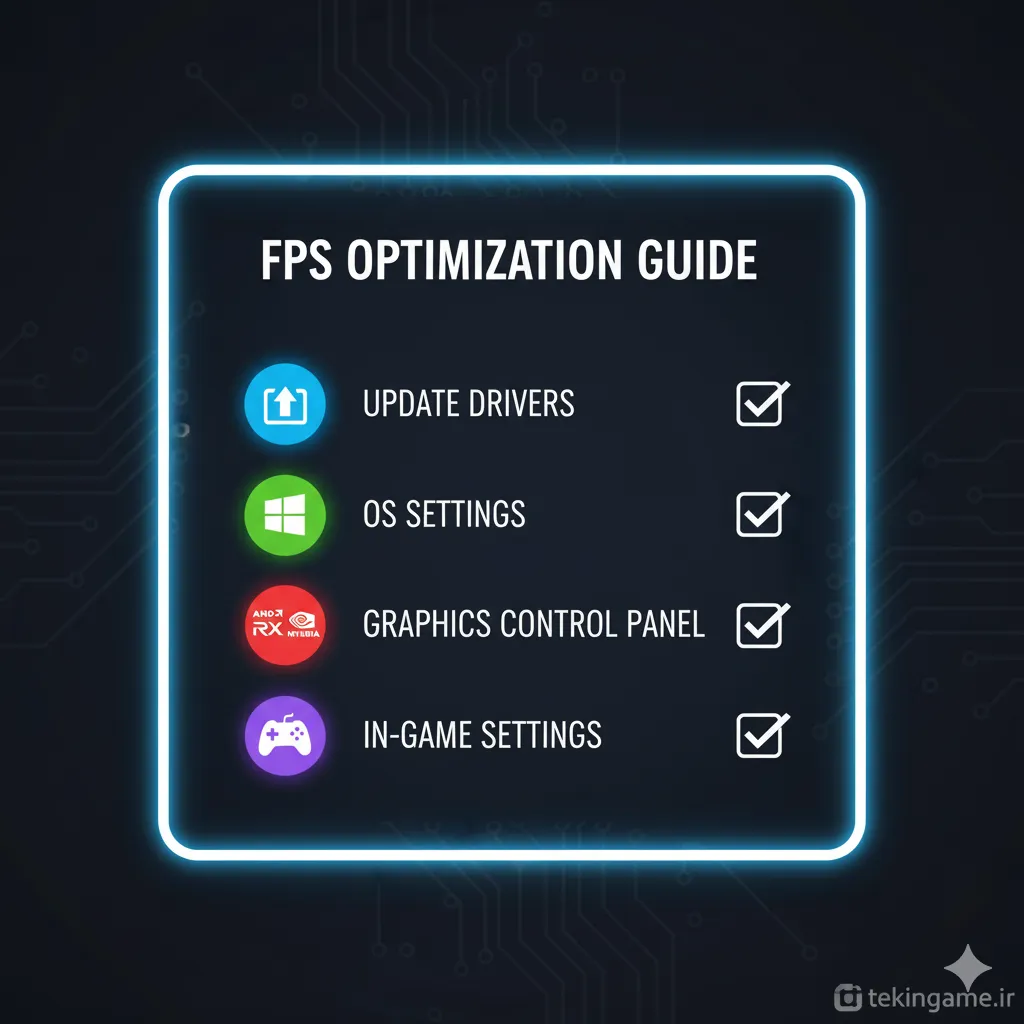
Both NVIDIA Control Panel and AMD Radeon Software offer deep-level graphics hooks that override standard application defaults. Fine-tuning these global parameters yields immediate dividends in responsiveness and visual clarity.
Tuning NVIDIA and AMD Profiles
NVIDIA users should switch the Power Management mode to Prefer Maximum Performance and enable Ultra Low Latency to minimize mouse-to-pixel delay. AMD users can leverage Radeon Anti-Lag and Radeon Boost profiles to dynamically scale performance during intense combat sequences.
Technical Specifications & Performance Breakdown
| Dimension | Status | Assessment |
|---|---|---|
| Engine Architecture | DirectX 12 / Vulkan Optimized | High-FPS stability across desktop and portable hardware |
| Spatial Audio | Multi-channel 3D Directional | Accurate positioning vital for tactical awareness |
| Player Capacity | Co-Op / Multi-Squad Ready | Optimized network replication and synchronization |
📚 Classified & Related Dossiers in TekinGame
If you wish to explore beyond this report and delve into cybernetic frontiers and autonomous AI architectures, do not miss these three exclusive deep-dives in the Tekin Garage:
- Noticeable increase in minimum and average FPS
- Drastic reduction in input lag and frame stutter
- Cleaner background resource management
- Requires manual updates after major OS patches
- Some advanced settings may need per-game tuning
Final Verdict & Official Sources
Frequently Asked Questions
Does Windows Game Mode actually improve FPS?
Yes, Game Mode prevents background background services from interfering with your active game threads, resulting in more consistent frame pacing.
How often should I update my graphics card drivers?
It is recommended to check for new GPU drivers whenever a major AAA game launches or at least once every month.
Does Hardware-Accelerated GPU Scheduling help low-end PCs?
HAGS helps reduce latency and can improve memory management across a wide variety of modern GPU architectures, though results vary by system spec.
Frequently Asked Questions
Is this release optimized for modern hardware?
Yes, built on modern scalable rendering pipelines with low hardware entry barriers.
Does it support full cross-platform cooperative play?
Yes, seamless squad matchmaking is fully supported.