The Ultimate Guide to Reducing Ping & Bypassing DNS Restrictions
- 🎮Root Cause Diagnosis- Understand the difference between lag, ping, packet loss, and jitter
- 🎧Best DNS Solutions- Global and regional DNS for gaming and bypassing restrictions
- 🚀Hardware Optimization- Router settings, QoS configuration, and cable selection
- 🗡️GPN Software- ExitLag, GearUP Booster, and route optimization
- 📰Windows Registry Tweaks- Nagle's Algorithm, MTU optimization, and network stack tuning
- ⚔️Long-term Solutions- Fiber optic migration and ISP selection
Nothing is more frustrating than your character teleporting across the map, shots failing to register, or getting disconnected mid-match during a crucial ranked game. In 2025, despite massive advancements in internet infrastructure, gamers worldwide still struggle with high ping, packet loss, and DNS-based restrictions (especially in regions with game sanctions or censorship). In this exhaustive Tekin Plus guide, we've compiled every proven method—from router firmware optimizations and MTU calculations to the best free DNS services and advanced GPN (Gamers Private Network) solutions like ExitLag—to completely transform your online gaming experience.
At a Glance
- High ping and packet loss have different root causes requiring separate solutions
- Proper DNS selection can both bypass regional restrictions and reduce latency by 15-30ms
- Wired LAN connection (CAT6 Ethernet) can reduce ping by 10-20ms and eliminate jitter completely
- GPN software finds optimal routing paths to game servers, often reducing ping by 20-40ms
- Ultimately, your internet connection type (fiber vs copper) is the most critical factor for stable, low-latency gaming
Chapter One: Diagnosis Before Treatment – What's Really Causing Your Problem?
Many gamers immediately blame "lag" whenever their game doesn't feel responsive, but this blanket term actually encompasses several distinct technical issues with different causes and solutions. Before diving into fixes, we need to accurately diagnose what's actually happening on your network.
Understanding the Critical Difference: Lag vs. Frame Drops vs. Network Latency
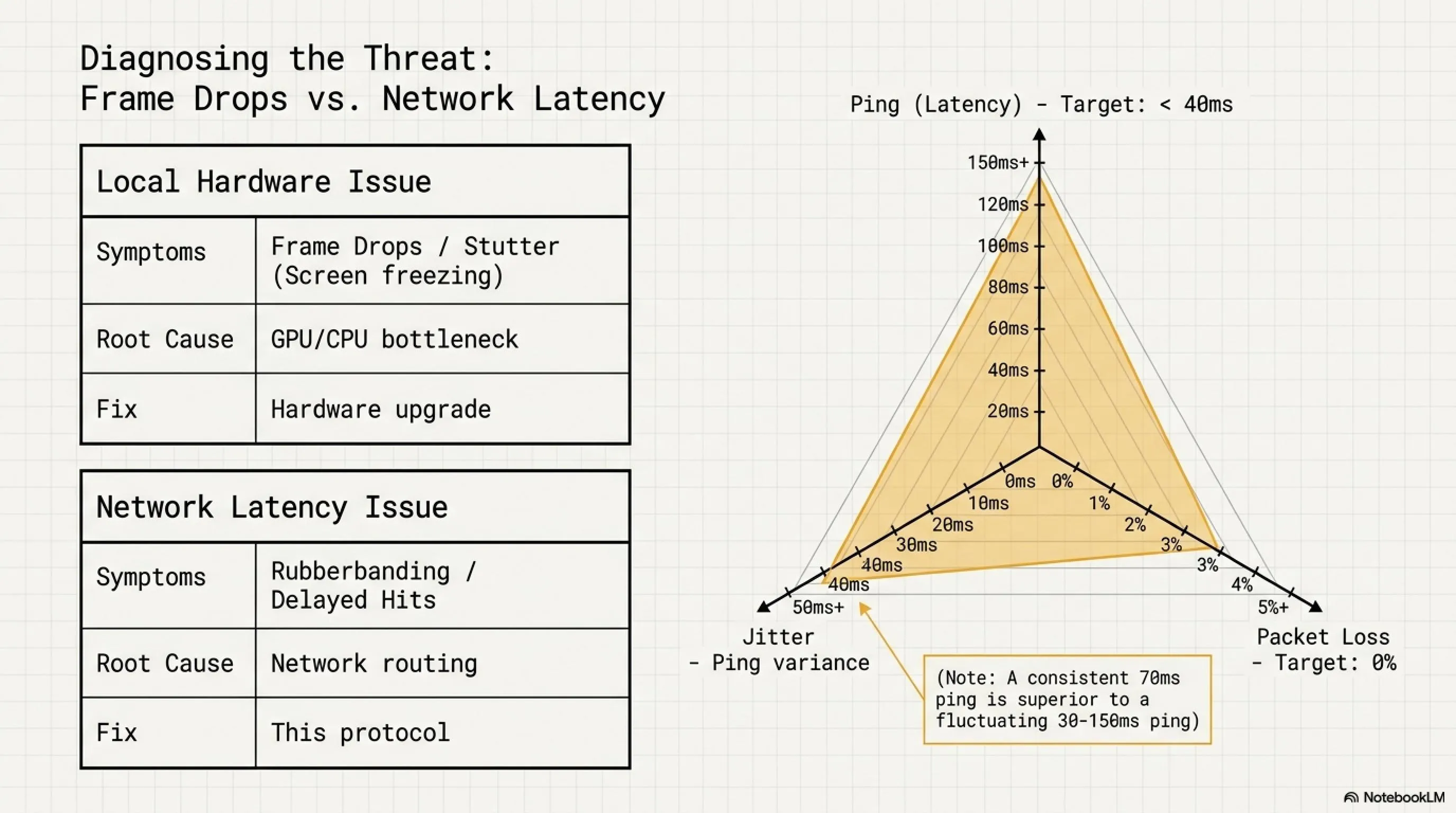
Let's start with a practical example. Imagine you're playing Valorant or Call of Duty. Suddenly, the game visually freezes for half a second, then resumes—this is a "frame drop" or "stutter," which is a GPU or CPU bottleneck, not an internet issue. However, if you fire your weapon and the enemy dies one full second later, or your character rubber-bands backward after moving forward, that's a network problem.
The confusion between these issues leads many players to pursue the wrong solutions. Upgrading your internet won't fix frame drops, and upgrading your GPU won't fix packet loss. Proper diagnosis is essential.
The Deadly Triangle: Three Network Enemies of Online Gaming
The Comprehensive Network Health Test
Before attempting any fixes, you must establish a baseline and identify where the problem originates. This diagnostic process takes only 5-10 minutes but provides invaluable information.
Step 1: Testing Your Base Connection Stability
Open Command Prompt (press Windows + R, type "cmd", press Enter). Type the following command:
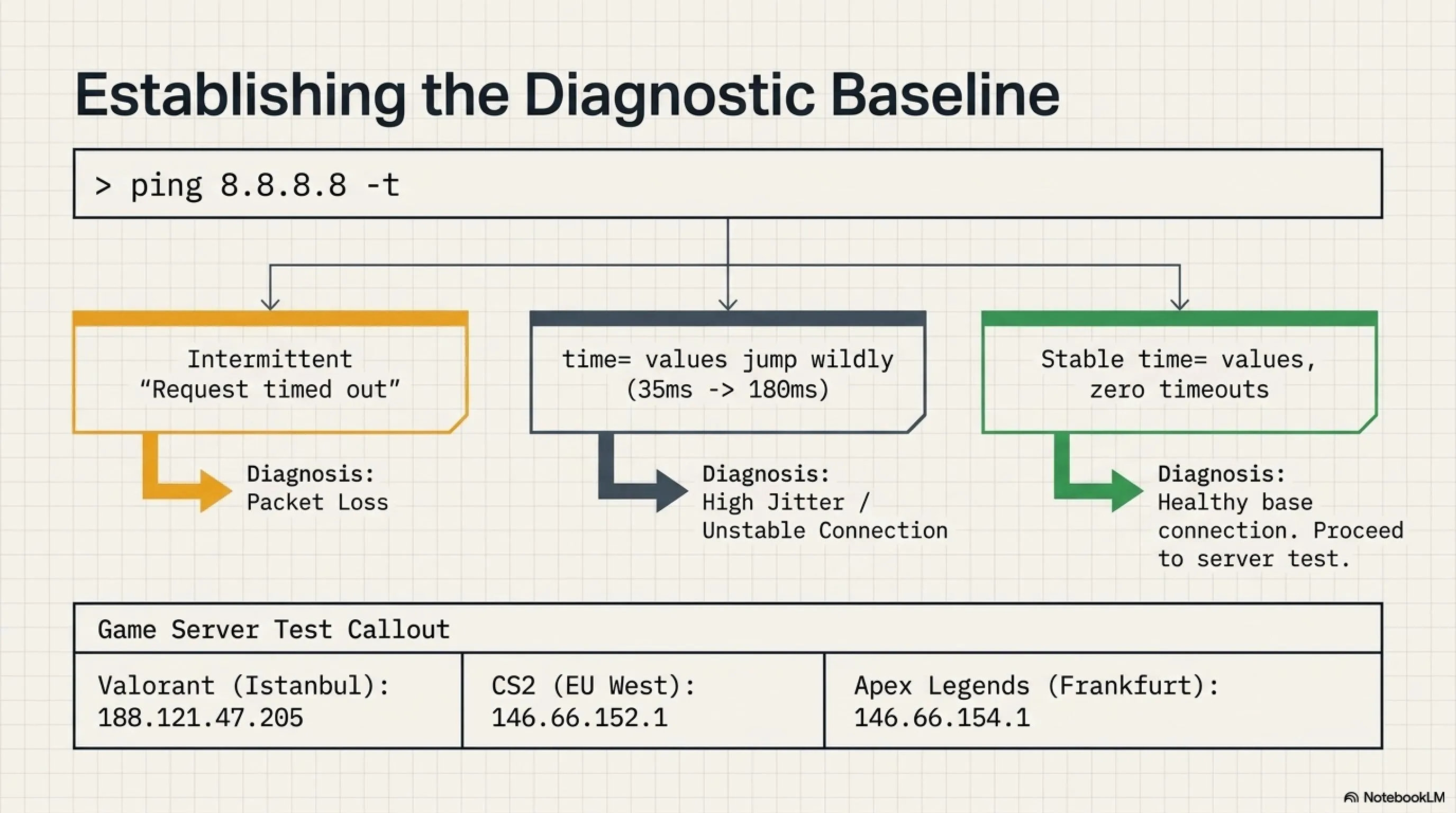
ping 8.8.8.8 -t
This command continuously pings Google's public DNS server. Let it run for at least 2-3 minutes while observing the results. Here's what to look for:
• If you see "Request timed out" messages appearing intermittently, you have packet loss. Count how many appear out of 100 pings to calculate your packet loss percentage
• If the "time=" value varies wildly (e.g., jumping from 35ms to 180ms to 45ms), you have high jitter
• If both values are stable and you see no timeouts, your base connection to the internet is healthy
Step 2: Testing Game Server Connectivity
Now test your connection specifically to the game servers you play on. Different games route through different networks, so your connection to Google might be perfect while your connection to game servers is terrible. Here are some common game server IPs for testing:
• Valorant (Istanbul): ping 188.121.47.205 -t
• CS2 (EU West): ping 146.66.152.1 -t
• Fortnite (EU): ping 18.200.0.1 -t
• Apex Legends (Frankfurt): ping 146.66.154.1 -t
If your ping to Google is good (under 40ms, stable) but your ping to game servers is poor (over 100ms or unstable), the issue is with routing—this is exactly where DNS changes and GPN software can help dramatically.
Advanced Diagnostic: Traceroute Analysis
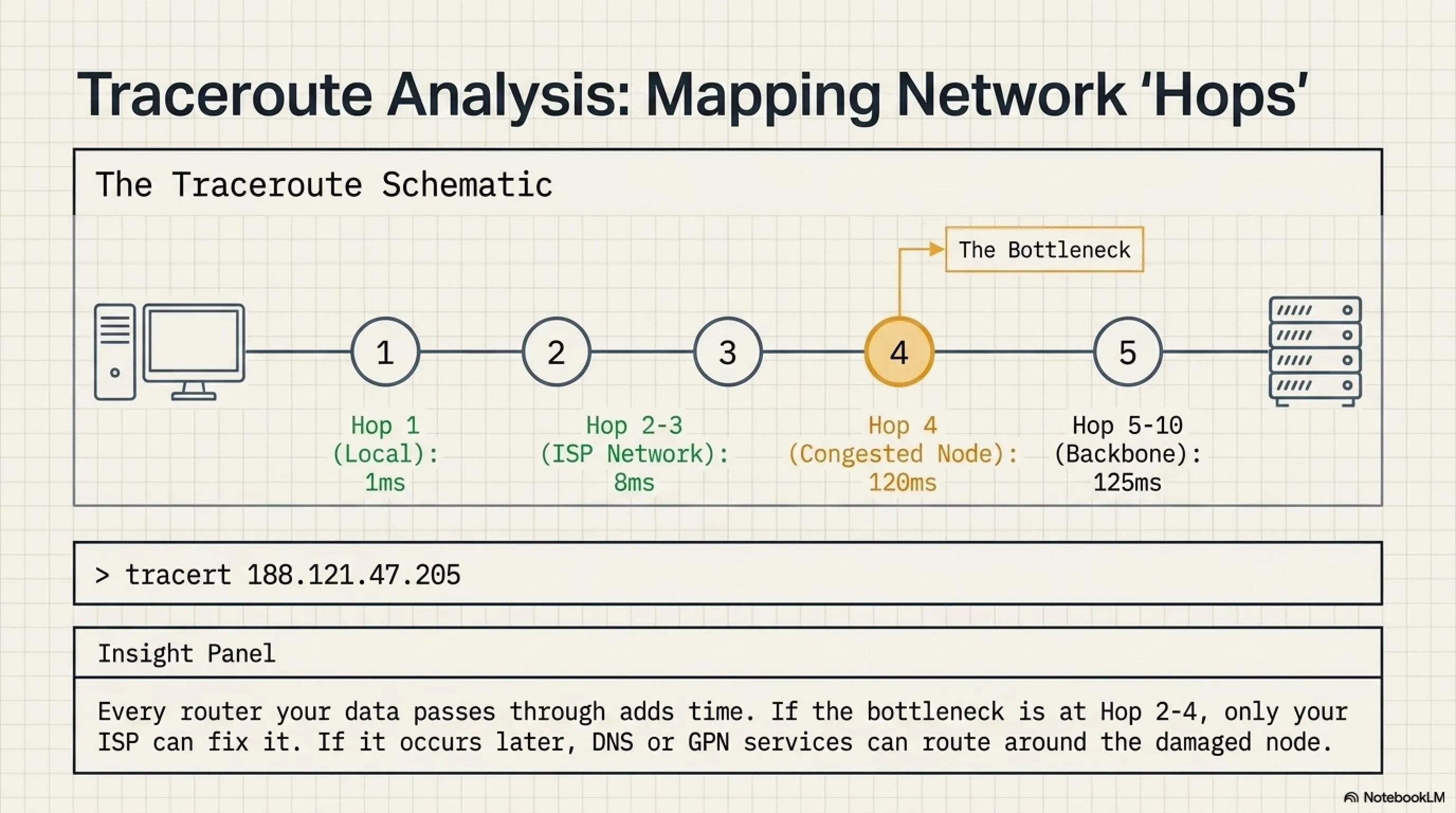
For users who want to dig deeper, a traceroute reveals the exact path your data takes to reach the game server, showing each "hop" (router) along the way and the latency added at each step.
tracert 188.121.47.205
This command shows every router between you and the Valorant Istanbul server. If you see a massive latency spike at a specific hop (e.g., hop 1 shows 5ms, hop 2 shows 8ms, but hop 3 suddenly shows 120ms), that particular router is the bottleneck. If the problematic router belongs to your ISP (typically hops 2-4), only your ISP can fix it—but if it's later in the route, DNS or GPN services can route around it.
Jargon Buster: Understanding Network Hops
Chapter Two: The DNS Revolution – Bypassing Restrictions While Reducing Latency
DNS (Domain Name System) is one of the most powerful yet widely misunderstood tools for improving gaming performance. Most users think DNS is only relevant for bypassing regional restrictions or censorship, but proper DNS configuration can also significantly reduce your ping and improve routing efficiency.
The Technical Reality: How DNS Impacts Gaming Performance
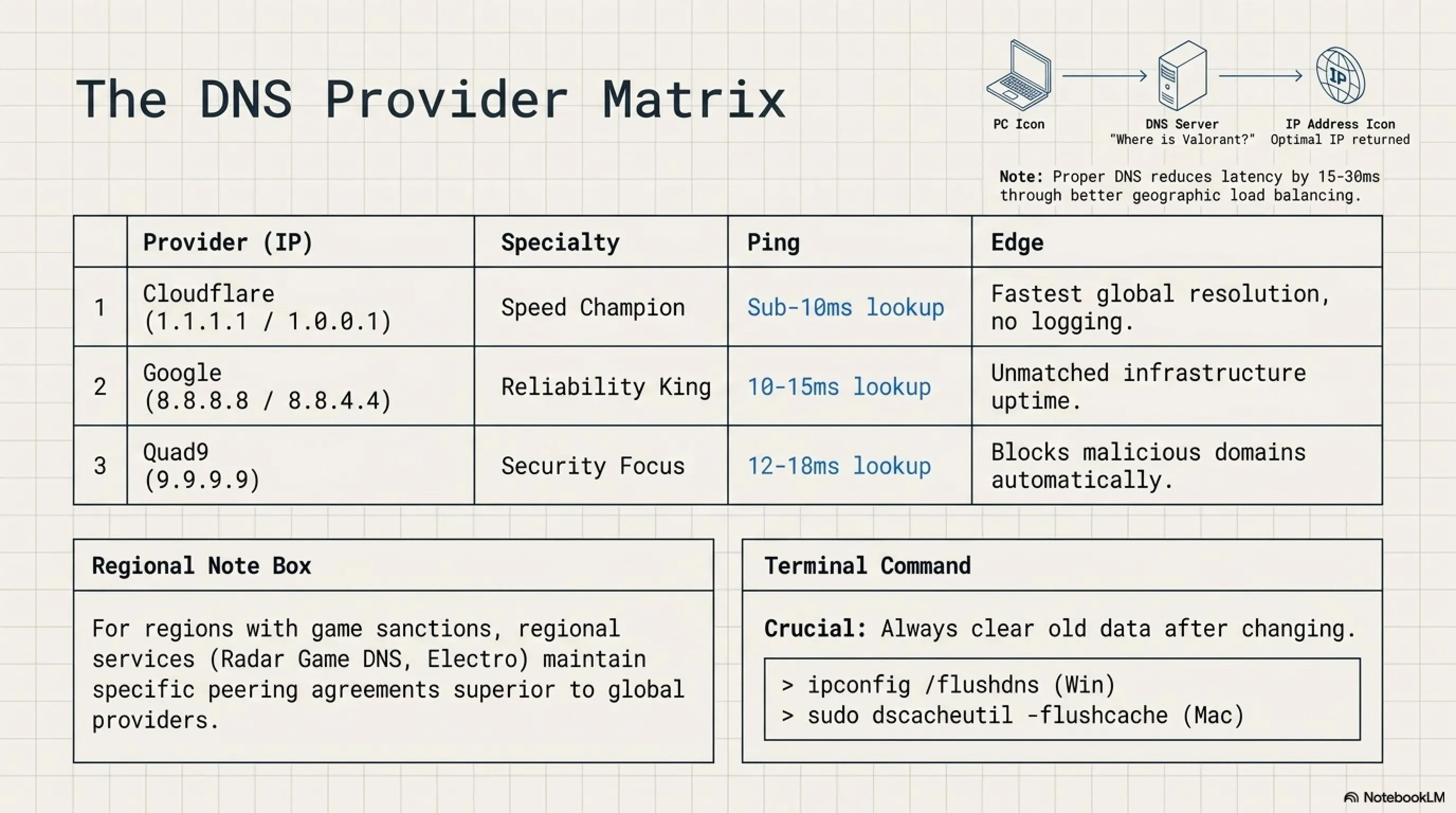
Here's the technical explanation: When you launch a game and it connects to "valorant-eu.riot.com", your computer must first ask a DNS server "What is the IP address of this server?" The DNS responds with an IP like 188.121.47.205. However—and this is the critical part—different DNS servers can return different IP addresses for the same domain based on geographic load balancing, and they can route your subsequent connection through different network paths.
A DNS server operated by your ISP might direct you through their preferred (often congested) network routes. A specialized gaming DNS or a globally optimized DNS like Cloudflare might route you through faster, less congested paths. This can result in 15-30ms latency reduction in many cases.
The Best Global DNS Services for Gaming (2025)
After extensive testing across multiple regions and game titles, these DNS servers consistently deliver the best performance:
Cloudflare DNS – Speed Champion
| Primary DNS | 1.1.1.1 |
| Secondary DNS | 1.0.0.1 |
| Best For | Global coverage, lowest resolution time |
| Tested Performance | Sub-10ms DNS resolution, 99.99% uptime |
| Key Advantage | Fastest DNS lookup times globally, privacy-focused (no logging) |
Google Public DNS – Reliability King
| Primary DNS | 8.8.8.8 |
| Secondary DNS | 8.8.4.4 |
| Best For | Maximum stability and uptime |
| Tested Performance | 10-15ms DNS resolution, virtually 100% uptime |
| Key Advantage | Unmatched infrastructure, works everywhere, excellent for Steam and Battle.net |
Quad9 – Security-Focused Gaming
| Primary DNS | 9.9.9.9 |
| Secondary DNS | 149.112.112.112 |
| Best For | Security-conscious gamers, blocks malicious domains |
| Tested Performance | 12-18ms DNS resolution, excellent security filtering |
| Key Advantage | Automatically blocks phishing and malware domains without sacrificing speed |
Regional Gaming DNS Solutions
For players in specific regions dealing with game sanctions, regional restrictions, or poor routing from global DNS providers, specialized gaming DNS services can be game-changers. In the Middle East and Central Asia, services like Radar Game DNS and Electro DNS have proven particularly effective.
These services maintain peering agreements with game publishers and optimize routes specifically for gaming traffic, often delivering better results than global DNS providers for region-specific connectivity challenges.
Step-by-Step Guide: Changing Your DNS (Windows 11/10/Mac)
Changing your DNS is remarkably simple and takes less than 5 minutes. We recommend changing it both at the operating system level AND in your router to ensure all devices benefit from the optimization.
Method 1: Changing DNS in Windows 11/10
1. Press the Windows key and type "Network Settings" → Press Enter
2. Click "Change adapter options" (this opens Network Connections)
3. Right-click on your active connection (Ethernet or Wi-Fi) → Select "Properties"
4. Scroll down and double-click "Internet Protocol Version 4 (TCP/IPv4)"
5. Select "Use the following DNS server addresses"
6. Enter your preferred DNS addresses (e.g., Preferred: 1.1.1.1, Alternate: 1.0.0.1)
7. Click OK on all windows to save
8. Open Command Prompt as Administrator and run: ipconfig /flushdns
Method 2: Changing DNS in Your Router (Recommended)
This method is superior because it applies DNS changes to every device connected to your network—consoles, phones, tablets, smart TVs, everything. The exact steps vary by router model, but the general process is:
1. Open a web browser and navigate to your router's IP (usually 192.168.1.1 or 192.168.0.1)
2. Log in with your admin credentials
3. Navigate to WAN Settings, Internet Settings, or Network Settings (varies by router)
4. Look for DNS Server settings
5. Change from "Automatic" or "ISP Default" to "Manual" or "Custom"
6. Enter your preferred Primary and Secondary DNS addresses
7. Save settings and reboot the router
Critical Step: Flushing DNS Cache After Changes
ipconfig /flushdns • On Mac: Open Terminal and run sudo dscacheutil -flushcache; sudo killall -HUP mDNSResponder • On Linux: Run sudo systemd-resolve --flush-caches or sudo /etc/init.d/nscd restart • After flushing, restart your router for good measure to ensure all cached data is cleared.DNS Benchmarking: Finding YOUR Fastest DNS
While we've provided general recommendations, the absolute fastest DNS for YOUR specific location and ISP can vary. Use a DNS benchmark tool like "DNS Benchmark" by GRC or "namebench" to test dozens of DNS servers and find the one with the lowest latency for your connection.
These tools perform hundreds of DNS lookups to various servers and measure response times, giving you concrete data about which DNS will be fastest for you specifically. What's fastest in New York might not be fastest in Dubai or Tokyo.
Chapter Three: Hardware Optimization – Router, Cables, and Physical Layer
No amount of software tweaking can overcome fundamental hardware limitations. Your physical connection—the router, cables, and connection type—forms the foundation of your gaming network. Let's optimize every component.
The Definitive Battle: Ethernet Cable vs. Wi-Fi
This is perhaps the single most impactful change you can make: switch from Wi-Fi to a wired Ethernet connection. I understand pulling a cable from your router to your gaming setup can be inconvenient, but the performance difference is absolutely massive.
Wi-Fi vs. Wired LAN: The Comprehensive Comparison
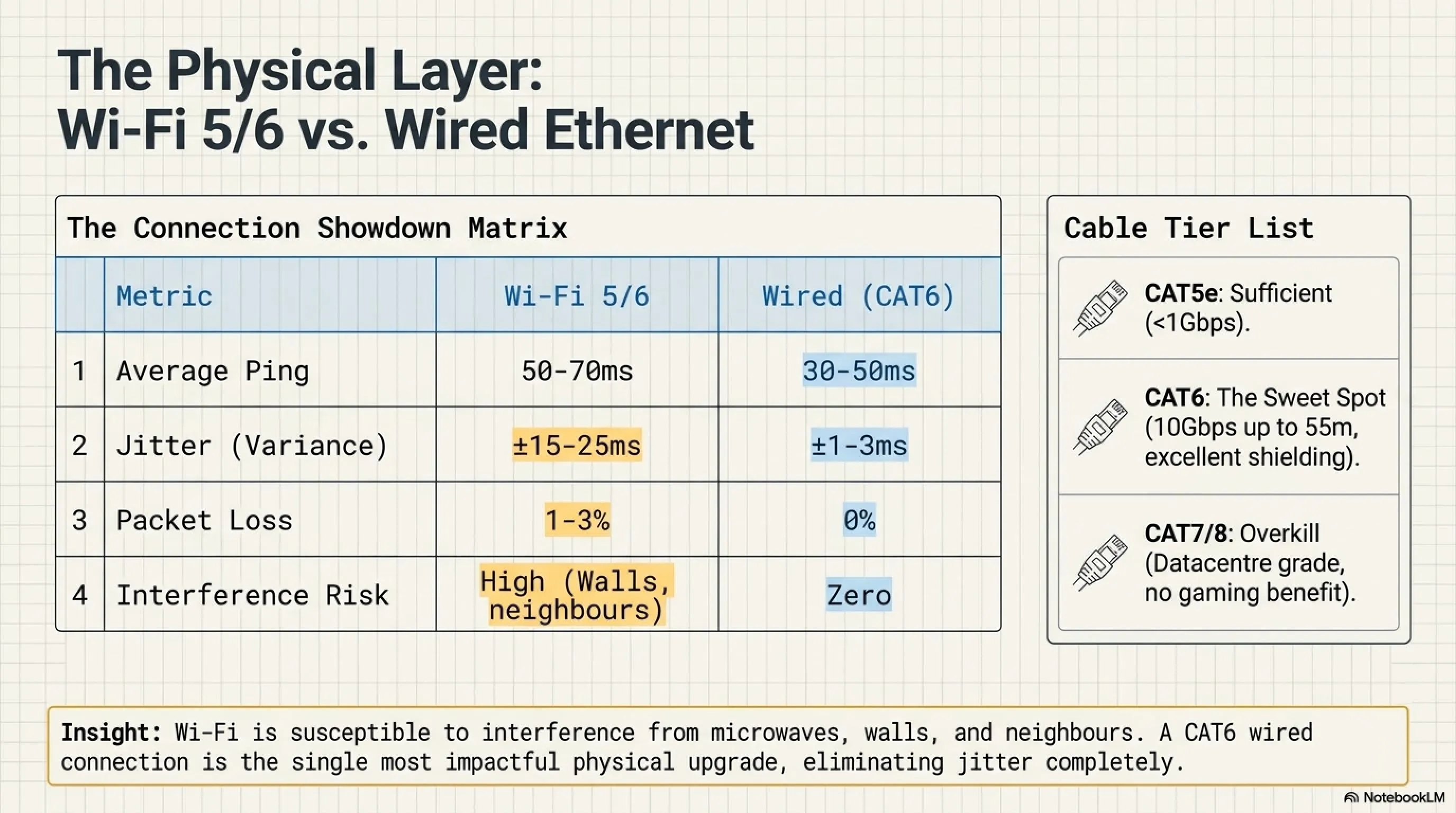
| Metric | Wi-Fi 5/6 | Wired Ethernet (CAT6) |
|---|---|---|
| Average Ping | 50-70ms | 30-50ms |
| Jitter (Variance) | ±15-25ms | ±1-3ms |
| Packet Loss | 1-3% | 0% |
| Susceptible to Interference | Yes (neighbors, microwaves, walls) | No |
| Consistency in Gaming | Unpredictable | Rock Solid |
| Maximum Bandwidth Utilization | 60-70% of rated speed | 95-100% of rated speed |
The physics are undeniable: Wi-Fi signals weaken dramatically when passing through walls (especially concrete), metal, and even water (the human body is 60-70% water). Additionally, Wi-Fi operates on shared frequency bands (2.4GHz and 5GHz) that are crowded with signals from neighbors' routers, Bluetooth devices, wireless mice, keyboards, baby monitors, and even microwave ovens. All of this creates interference that manifests as packet loss and jitter.
In contrast, a wired Ethernet connection is immune to all electromagnetic interference, provides full-duplex communication (simultaneous send/receive at full speed), and delivers consistent, predictable performance.
If Wired Isn't Possible: Optimizing Wi-Fi
If running an Ethernet cable truly isn't feasible, implement these Wi-Fi optimizations:
• Always use 5GHz band instead of 2.4GHz: The 5GHz band is far less congested and offers higher speeds, though with slightly reduced range
• Position your router optimally: Central location, elevated, away from walls and metal objects. The router should have clear line-of-sight to your gaming device if possible
• Change Wi-Fi channel: Use a Wi-Fi analyzer app to find the least congested channel. In the 5GHz band, channels 36-48 and 149-165 are typically less crowded
• Enable Wi-Fi 6 (802.11ax) if available: Wi-Fi 6 includes features like OFDMA and Target Wake Time that significantly reduce latency in congested environments
• Consider Powerline Adapters: These devices send Ethernet signals through your home's electrical wiring, offering a wired-like experience without running new cables
Router Settings That Actually Matter for Gaming
Most gamers never venture beyond the basic Wi-Fi password page in their router settings, but several advanced configurations can dramatically improve gaming performance.
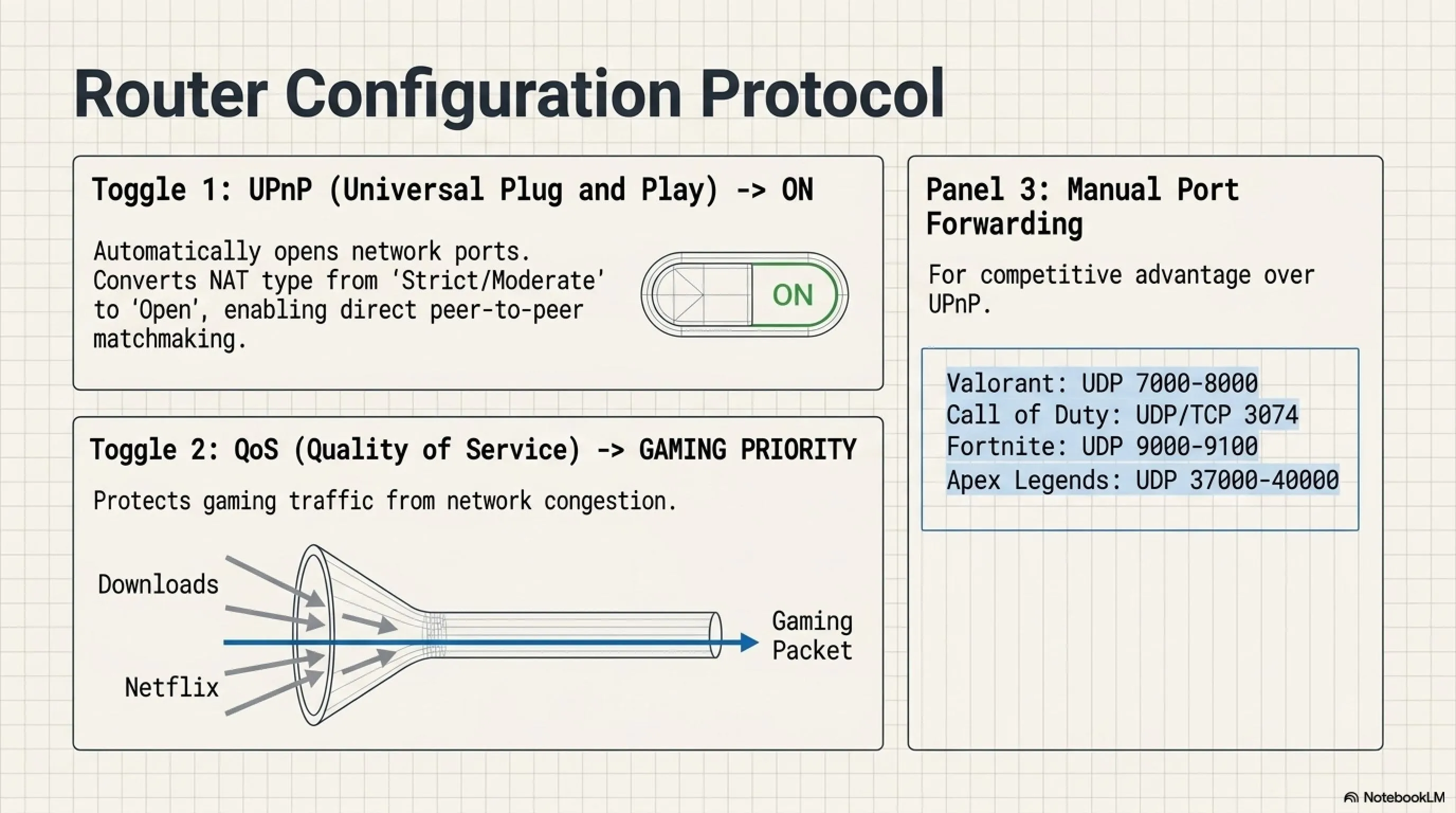
1. Enabling UPnP (Universal Plug and Play)
UPnP allows your gaming device to automatically open the necessary network ports without manual port forwarding configuration. This ensures your NAT type is "Open" rather than "Moderate" or "Strict." An Open NAT type allows direct peer-to-peer connections with other players, reducing latency and improving matchmaking speed.
Navigate to your router's Advanced Settings or Security section and enable UPnP. After enabling, restart your console or PC and check your NAT type in the game's network settings—it should now show "Open."
2. Configuring QoS (Quality of Service)
QoS is perhaps the most powerful router feature for gamers, especially in households where multiple devices compete for bandwidth. QoS allows you to prioritize your gaming device's traffic above all other devices on the network.
The configuration process varies by router, but generally:
1. Navigate to QoS, Traffic Control, or Bandwidth Management in your router settings
2. Enable QoS
3. Select "Gaming" or "Highest Priority" mode
4. Add your gaming device by IP address or MAC address
5. Set priority to "Highest" or "Critical"
6. Optionally, limit bandwidth for other devices to ensure your gaming device always has sufficient headroom
With QoS properly configured, even if someone on your network starts streaming 4K video or downloading large files, your gaming traffic maintains priority and consistent latency.
Advanced Technique: Manual Port Forwarding
ipconfig (Windows) or ifconfig (Mac/Linux). A complete port forwarding database exists at portforward.comChoosing the Right Ethernet Cable: CAT5e vs. CAT6 vs. CAT7
Not all Ethernet cables are equal. For gaming in 2025, here are the recommendations:
• CAT5e: Sufficient for speeds up to 1Gbps over 100 meters. If your internet is 100Mbps or less, CAT5e is fine
• CAT6: The sweet spot for most gamers. Supports up to 10Gbps over 55 meters with better shielding than CAT5e, reducing crosstalk and interference. Recommended for gigabit connections
• CAT6a/CAT7: Overkill for home gaming. These support 10Gbps over longer distances and are primarily for enterprise datacenters. Unless you have multi-gigabit internet, the extra cost isn't justified
For the vast majority of gamers, CAT6 cable offers the best performance-to-cost ratio. Avoid ultra-cheap cables from unknown manufacturers—poor shielding can actually introduce noise and degrade performance.
Chapter Four: GPN Software – The Routing Revolution
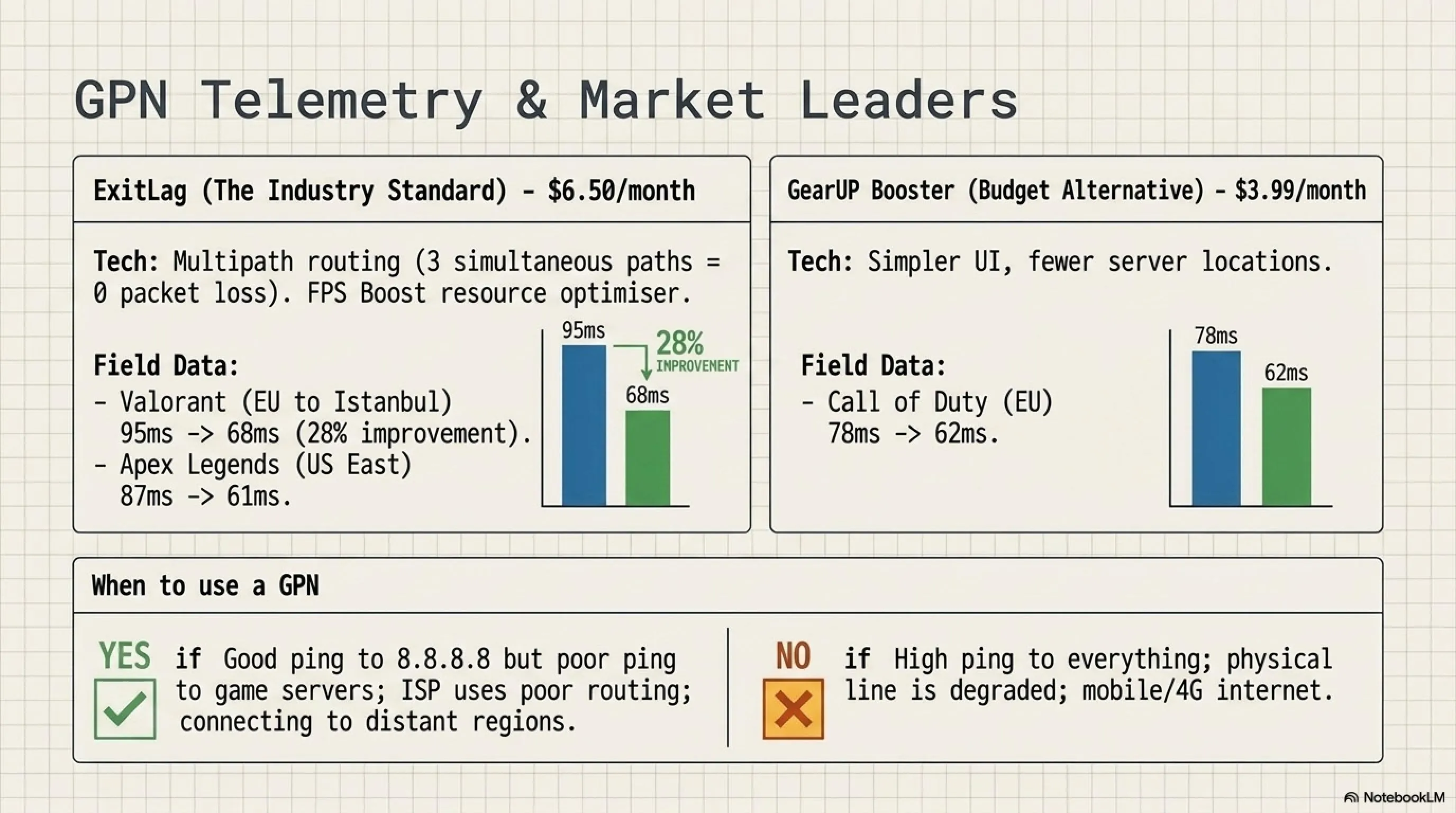
Now we enter one of the most powerful tools in the modern gamer's arsenal: GPN (Gamers Private Network) software. These applications can seem like magic, often reducing ping by 30-50ms, but understanding how they work helps you use them effectively.
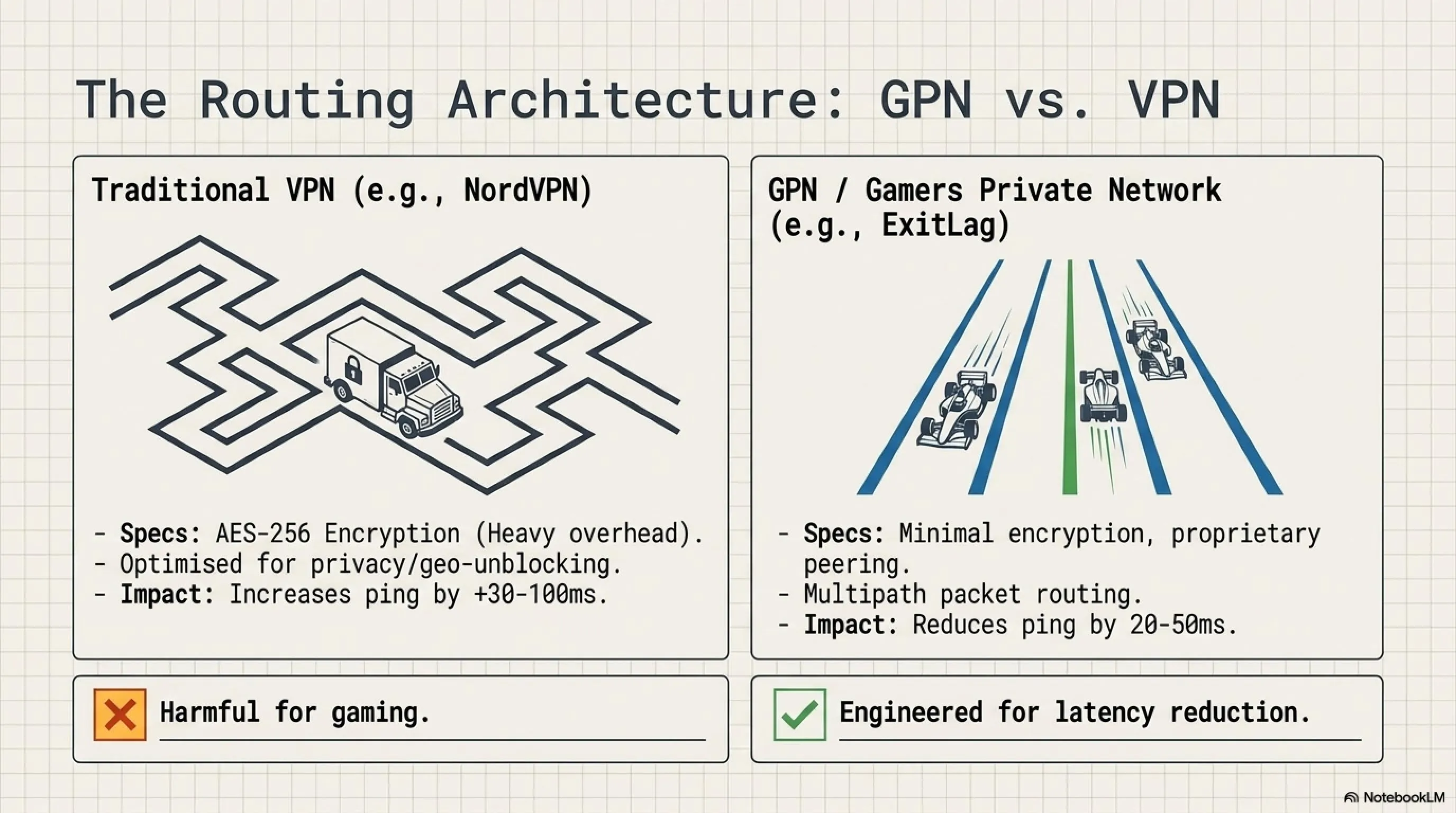
GPN vs. VPN: Understanding the Fundamental Difference
Many gamers confuse GPNs with traditional VPNs (Virtual Private Networks), but they're fundamentally different technologies optimized for entirely different purposes.
Traditional VPNs (NordVPN, ExpressVPN, etc.):
• Primary purpose: Privacy, security, bypassing regional content blocks
• Encrypt all your traffic with heavy cryptography (AES-256)
• Route through the closest available VPN server, which may not be optimal for gaming
• Result: Increased ping (typically +30-100ms) due to encryption overhead and non-optimized routing
• Use case: Protecting privacy, accessing geo-blocked content, security on public Wi-Fi
GPNs (ExitLag, GearUP Booster, etc.):
• Primary purpose: Reduce gaming latency and eliminate packet loss
• Use minimal or no encryption to minimize overhead
• Actively map network routes and select the fastest path to game servers
• Employ advanced techniques like multipath routing and packet prioritization
• Result: Reduced ping (typically -20 to -50ms) and zero packet loss
• Use case: Competitive gaming where every millisecond matters
How GPN Technology Actually Works
The magic of GPNs lies in intelligent routing. Here's a simplified explanation: Your ISP routes your game traffic through their standard network infrastructure, which is optimized for general internet use—web browsing, video streaming, file downloads. These routes prioritize throughput (total bandwidth) over latency (speed of individual packets).
Game traffic has opposite requirements: latency matters far more than throughput. A typical online game uses only 50-200 Kbps of bandwidth but requires packets to arrive in under 50ms. GPNs maintain proprietary networks of servers with direct peering agreements to major game networks. They continuously measure latency, packet loss, and jitter across thousands of possible routes, then direct your game traffic through the optimal path in real-time.
Additionally, many GPNs employ "multipath" technology, simultaneously sending your game packets through multiple redundant paths. If one path experiences packet loss, the backup paths ensure the data still arrives, eliminating the stuttering and rubberbanding caused by lost packets.
In-Depth Review: ExitLag – The Industry Leader
📚 Classified & Related Dossiers in TekinGame
If you wish to explore beyond this report and delve into cybernetic frontiers and autonomous AI architectures, do not miss these three exclusive deep-dives in the Tekin Garage:
Budget Alternative: GearUP Booster Review
Does GPN Software Actually Work? The Truth
The short answer: Yes, but not for everyone in every situation. GPNs are exceptionally effective when your problem stems from poor ISP routing. If your ISP routes your game traffic through congested or geographically inefficient paths, a GPN can bypass these issues and provide dramatic improvements.
However, GPNs cannot fix fundamental infrastructure problems. If your issue is physical line noise on your copper connection, an overloaded local ISP node, or living far from any game servers, a GPN has limited ability to help. The data still has to travel through your ISP's infrastructure for the "last mile."
When GPNs Excel:
• You have good ping to general internet (Google, Cloudflare) but poor ping to specific game servers
• You experience packet loss or jitter specifically during gaming but not during general browsing
• Your ISP is known for poor gaming routes (common with regional ISPs)
• You're trying to connect to game servers in distant regions
• Your game uses specific port ranges that your ISP may be throttling
When GPNs Won't Help:
• You have high ping to everything, including 8.8.8.8 and 1.1.1.1
• You're on a very slow connection (under 5Mbps)
• Your physical line has issues (copper degradation, noise)
• You're on mobile/cellular internet with inherently high, variable latency
The best way to determine if a GPN will help you: test your ping to game servers without the GPN, then with it. Most services offer free trials. If you see a reduction of 20ms or more, it's worth the subscription cost.
Chapter Five: Advanced Windows Optimizations
Windows is optimized for general computing tasks—web browsing, productivity apps, media consumption—not gaming. Several registry tweaks and network stack modifications can reduce latency by eliminating unnecessary delays built into the operating system.
Disabling Nagle's Algorithm for Gaming
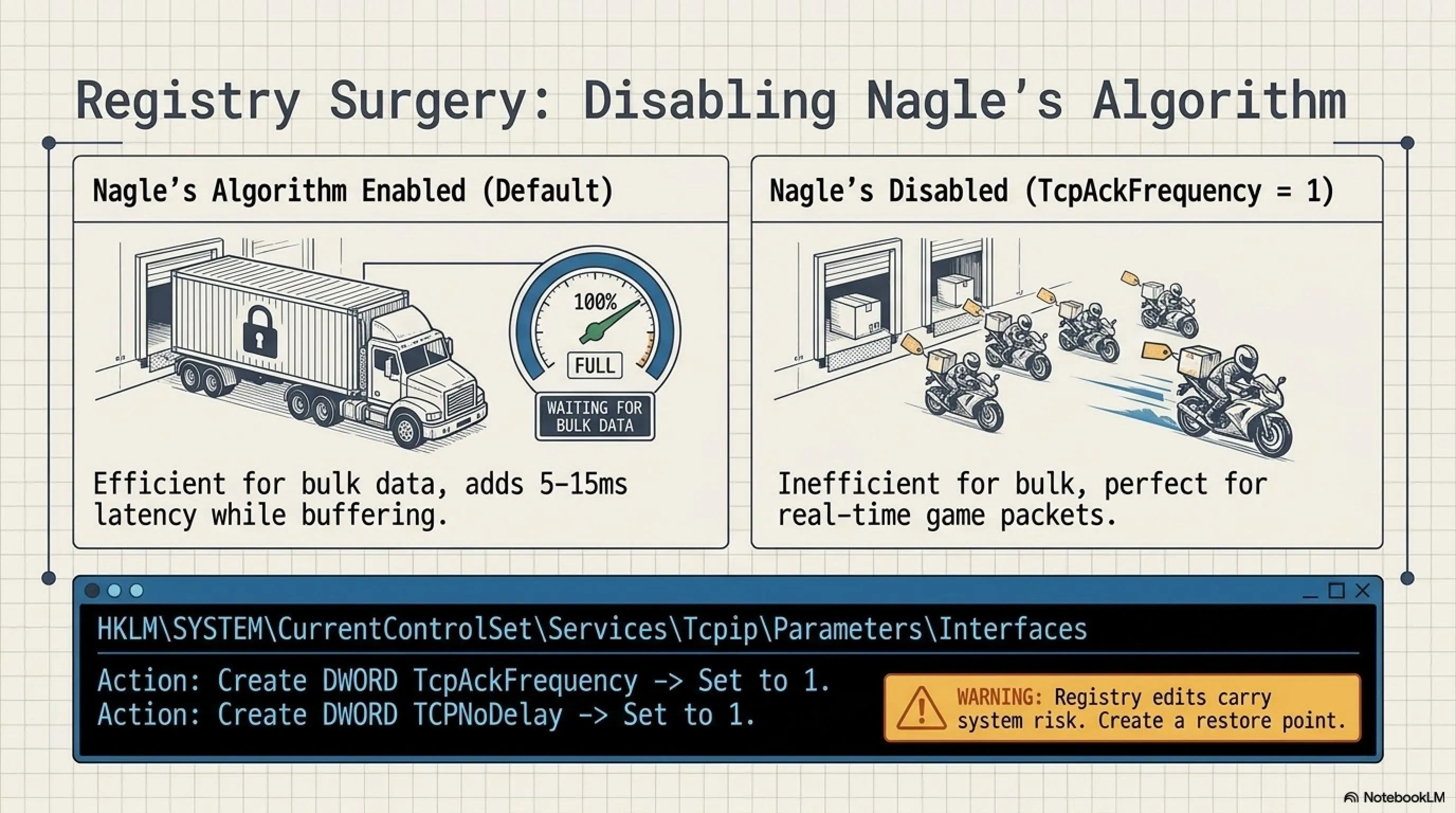
Nagle's Algorithm is a network optimization technique from the 1980s designed to improve efficiency by bundling small data packets together before sending them. This reduces the total number of packets transmitted, which was important when bandwidth was expensive and limited.
However, this bundling introduces latency—packets sit in a buffer waiting to be combined with other packets before transmission. For gaming, where we want packets sent immediately regardless of size, Nagle's Algorithm is counterproductive. Disabling it can reduce latency by 5-15ms.
How to Disable Nagle's Algorithm (Advanced Users Only):
⚠️ WARNING: Editing the Windows Registry can cause system instability if done incorrectly. Create a System Restore Point before proceeding. If you're uncomfortable with registry editing, skip this section.
1. Press Win + R, type regedit, press Enter
2. Navigate to:
HKEY_LOCAL_MACHINE\SYSTEM\CurrentControlSet\Services\Tcpip\Parameters\Interfaces
3. Under Interfaces, you'll see multiple subfolders with GUID names. Open each one until you find the folder containing "DhcpIPAddress" or "IPAddress" matching your current IP
4. Right-click in the right pane → New → DWORD (32-bit) Value
5. Name it TcpAckFrequency and set the value to 1
6. Create another DWORD named TCPNoDelay and set it to 1
7. Reboot your computer for changes to take effect
Technical Explanation: Why TcpAckFrequency Works
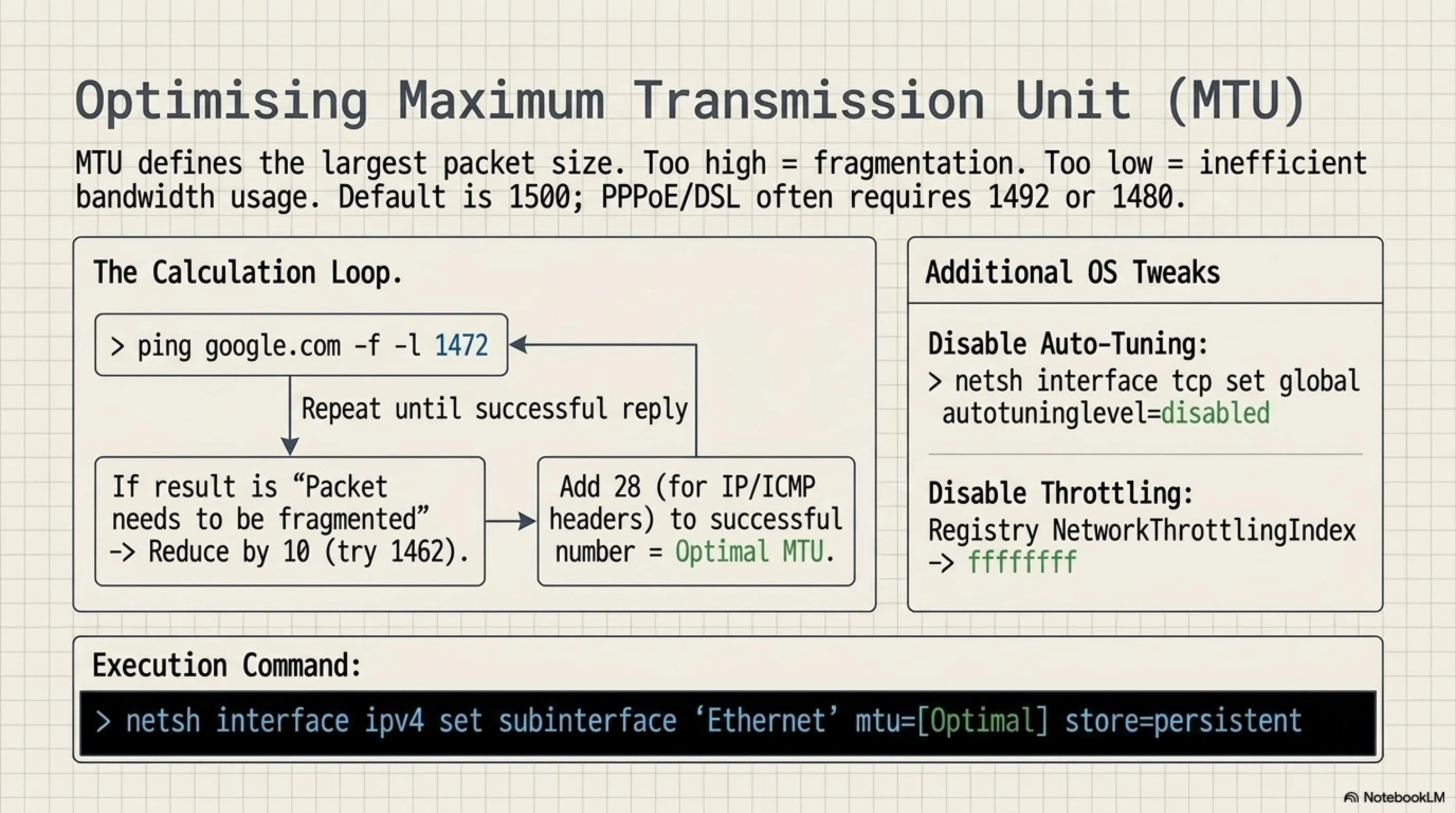
Optimizing MTU (Maximum Transmission Unit)
MTU defines the largest packet size that can be transmitted without fragmentation. If your MTU is set too high for your connection, packets must be fragmented into smaller pieces, causing latency and potential packet loss. If set too low, you're not utilizing your connection efficiently.
The default MTU for Ethernet is 1500 bytes, which works for most connections. However, some ISPs (particularly those using PPPoE, common with DSL connections) require a lower MTU like 1492 or 1480. Finding your optimal MTU can eliminate fragmentation and reduce latency.
Finding Your Optimal MTU:
1. Open Command Prompt as Administrator
2. Type: ping google.com -f -l 1472
3. If you get "Packet needs to be fragmented but DF set", the MTU is too high
4. Reduce the number by 10 and try again: ping google.com -f -l 1462
5. Keep reducing until you get successful replies without fragmentation
6. Once you find the largest value that works (e.g., 1452), add 28 to account for IP/ICMP headers
7. This final number (e.g., 1480) is your optimal MTU
Setting MTU in Windows:
netsh interface ipv4 set subinterface "Ethernet" mtu=1480 store=persistent
(Replace "Ethernet" with "Wi-Fi" if you're on wireless. Find your interface name with netsh interface ipv4 show subinterfaces)
Additional Windows Network Optimizations
1. Disable Windows Auto-Tuning (can cause bufferbloat):
netsh interface tcp set global autotuninglevel=disabled
2. Enable Direct Cache Access (DCA):
netsh int tcp set global dca=enabled
3. Disable Network Throttling Index:
In Registry Editor, navigate to:
HKEY_LOCAL_MACHINE\SOFTWARE\Microsoft\Windows NT\CurrentVersion\Multimedia\SystemProfile
Create DWORD: NetworkThrottlingIndex
Set to: ffffffff (hexadecimal)
4. Increase System Responsiveness for Gaming:
In the same Registry location, modify:
SystemResponsiveness → Set to 0 (gives gaming higher CPU priority)
Chapter Six: The Fiber Optic Revolution
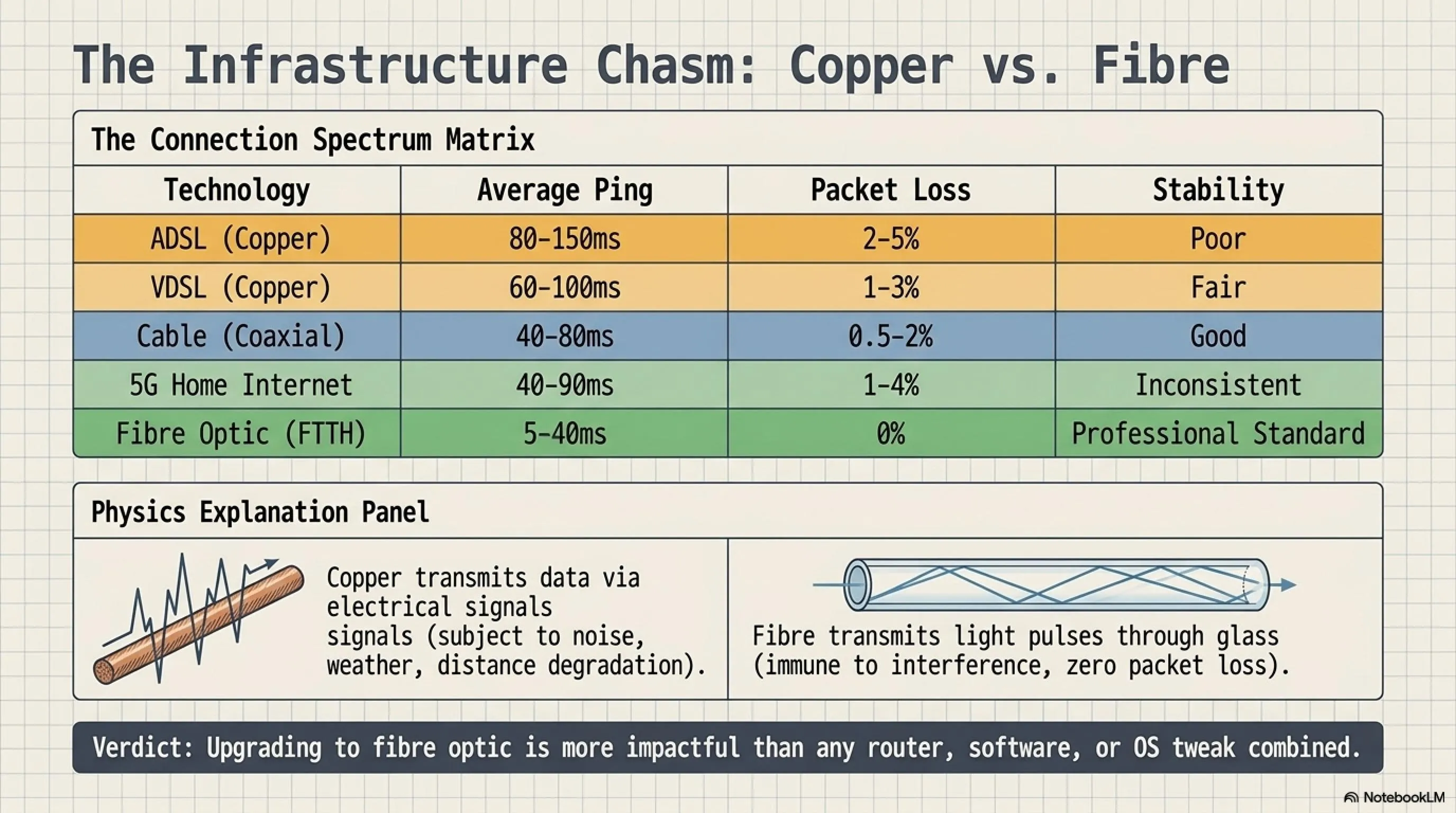
If you've implemented every optimization in this guide and still experience high or unstable ping, the problem is almost certainly your internet connection type. In 2025, the performance gap between legacy copper-based connections (ADSL/VDSL/Cable) and modern fiber optic has become a chasm.
Internet Connection Types: Comprehensive Gaming Performance Comparison
| Connection Type | Avg Ping | Packet Loss | Stability | Gaming Verdict |
|---|---|---|---|---|
| ADSL (Copper Phone Line) | 80-150ms | 2-5% | Poor | Not recommended |
| VDSL (Improved Copper) | 60-100ms | 1-3% | Fair | Playable, not ideal |
| Cable (Coaxial) | 40-80ms | 0.5-2% | Good | Decent for gaming |
| Fixed Wireless / 4G LTE | 70-150ms | 3-10% | Very unstable | Last resort only |
| 5G Home Internet | 40-90ms | 1-4% | Moderate | Improving, still inconsistent |
| Fiber Optic (FTTH) | 5-40ms | 0% | Excellent | Professional gaming standard |
Why Fiber Optic Is Transformative for Gaming
The superiority of fiber optic for gaming stems from fundamental physics. Copper cables (used in ADSL/VDSL) transmit data as electrical signals, which are subject to electromagnetic interference, signal degradation over distance, and crosstalk. Fiber optic cables transmit data as pulses of light through glass strands, which are immune to electromagnetic interference and experience minimal signal loss even over vast distances.
The practical benefits for gaming:
• Ultra-low latency: Ping to local servers can be as low as 1-5ms, and 10-20ms to regional servers
• Zero packet loss: The signal integrity of fiber means packets virtually never get corrupted or lost
• Perfect consistency: Unlike copper which degrades with electrical noise, weather, or line quality, fiber performance is rock-solid
• Symmetrical speeds: Many fiber plans offer identical upload and download speeds (e.g., 1Gbps/1Gbps), crucial for streaming while gaming
• Future-proof: Fiber infrastructure can support multi-gigabit speeds (10Gbps, 100Gbps) with just equipment upgrades, no new cables needed
Is Fiber Worth the Cost?
Fiber optic internet typically costs 50-100% more than equivalent-speed copper connections. For casual gamers, this premium might not be justified. But for competitive gamers, streamers, or anyone serious about online gaming, fiber is the single most impactful upgrade you can make—more significant than any router, any software, or any other optimization.
Consider this: you can spend $200 on a gaming router and maybe reduce ping by 5-10ms. Or you can upgrade to fiber and reduce ping by 30-50ms while eliminating jitter and packet loss entirely. The math is clear.
If fiber is available in your area and you're serious about gaming, it should be your top priority—ahead of a new GPU, ahead of a gaming monitor, ahead of anything else.
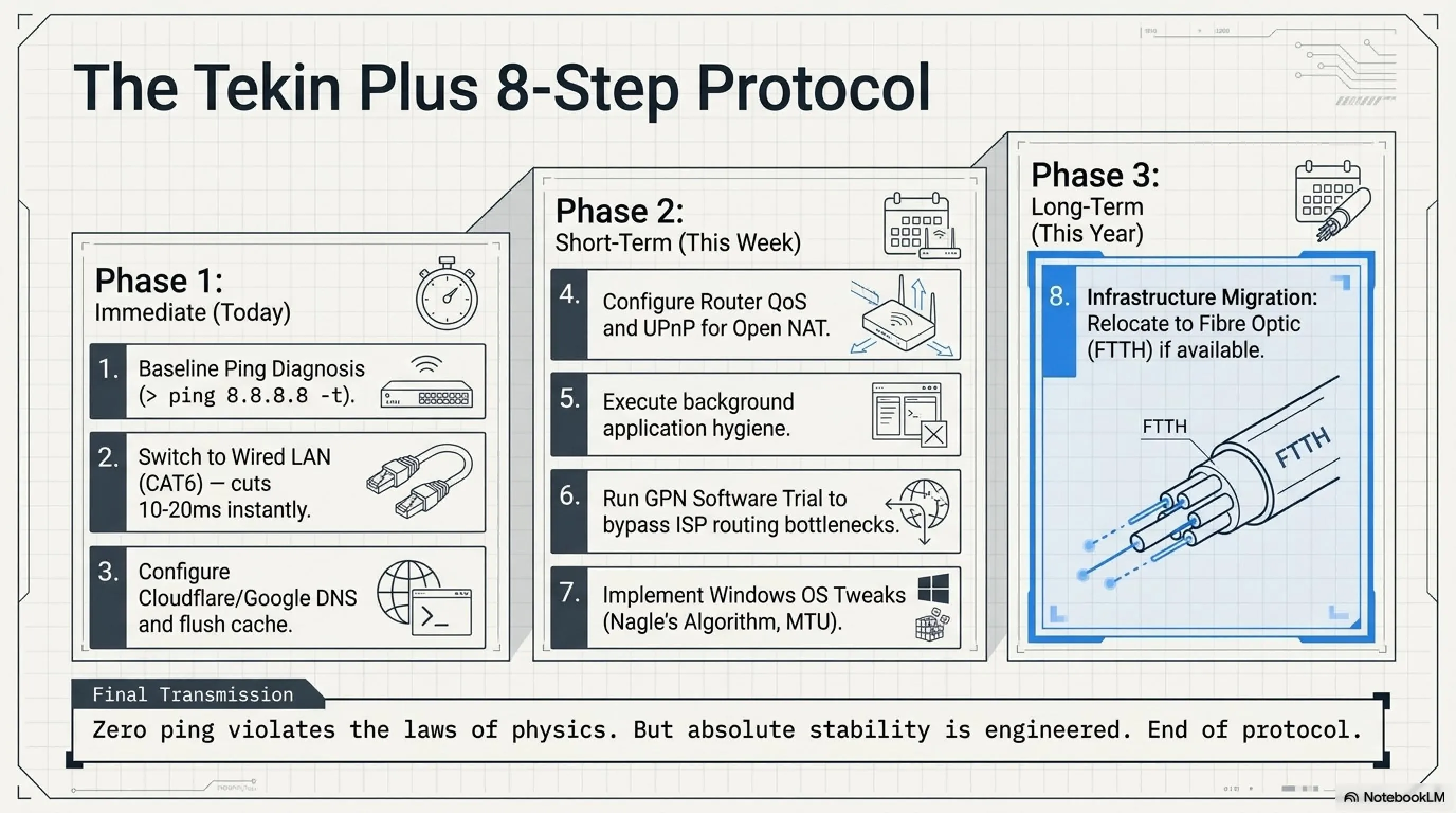
Chapter Seven: The Complete Optimization Checklist
You've now learned every technique for reducing ping and optimizing your gaming network. Let's consolidate everything into a prioritized, step-by-step action plan you can implement immediately.
The Tekin Plus 8-Step Gaming Network Optimization Protocol
Common Mistakes That Make Things Worse
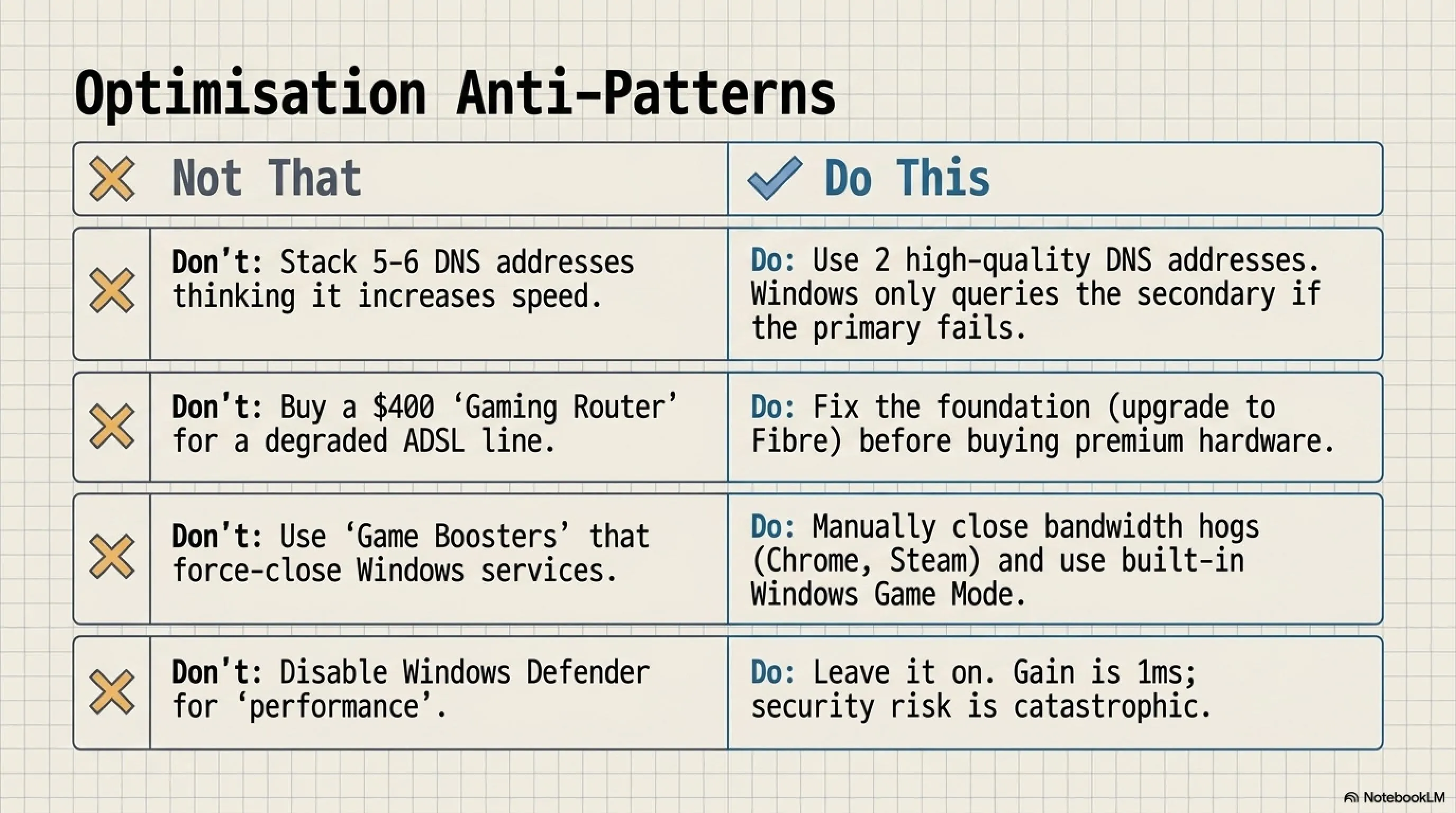
In the pursuit of better ping, many gamers implement "optimizations" that actually degrade performance. Avoid these pitfalls:
❌ Using Traditional VPNs for Gaming: Standard VPN services like NordVPN or ExpressVPN are designed for privacy and security, not gaming. They add 40-100ms of latency. Only use GPNs designed specifically for gaming.
❌ Configuring Multiple DNS Servers Thinking It's Faster: Some users input 5-6 different DNS addresses believing Windows will query them all and use the fastest. In reality, Windows tries the primary DNS first, and only attempts secondary/tertiary DNS if the primary fails. Multiple DNS entries increase fallback resilience but don't increase speed.
❌ Buying Expensive "Gaming" Routers Without Fiber: A $400 gaming router with RGB lights cannot overcome fundamental infrastructure limitations. If you're on a poor-quality ADSL line, even the best router can only optimize within those constraints. Fix the foundation (your connection type) before investing in premium equipment.
❌ Disabling Windows Defender or Firewall for "Performance": The performance gain is negligible (1-2ms at most) while the security risk is enormous. Modern Windows Defender has minimal impact on gaming performance.
❌ Using "Game Booster" Software That Disables Services: Many commercial "game booster" utilities work by disabling Windows services and killing background processes. This can cause system instability and the performance benefit is minimal compared to manually closing resource-intensive applications.
❌ Overclocking Network Adapters or Using "Registry Cleaning" Tools: These provide placebo effects at best and can introduce instability. Stick to proven, documented optimizations.
- Wired LAN connection reduces ping 10-20ms and eliminates jitter completely
- Proper DNS selection bypasses restrictions and can reduce latency 15-30ms
- GPN software is highly effective for routing-related issues, often reducing ping 20-40ms
- Registry tweaks (Nagle, MTU) provide measurable 5-15ms latency reduction
- Fiber optic migration provides the most dramatic improvement: 30-70ms reduction with perfect stability
- QoS configuration ensures consistent performance even in multi-device households
- GPN services require paid subscriptions ($4-7/month)
- Registry modifications carry risk of system instability if done incorrectly
- Fiber optic is not available in all geographic areas
- Some games' anti-cheat systems may flag GPN software
- No optimization can overcome fundamentally poor ISP infrastructure
- Results vary significantly based on geographic location and ISP quality
Chapter Eight: Frequently Asked Questions
These are the most common questions we receive from the Tekin gaming community about ping optimization and network performance.
Frequently Asked Questions
Is changing DNS legal and safe?
Absolutely. Changing DNS is a standard network configuration option and is completely legal worldwide. DNS only translates domain names to IP addresses—it doesn't hide your activity or violate any terms of service. Major tech companies like Google and Cloudflare offer public DNS specifically for users to switch to.
Why does my ping increase dramatically at night?
Evening hours (7 PM - midnight) represent peak usage times when most people stream video, download files, and game online. ISPs often implement bandwidth shaping or experience congestion on their networks during these hours. Solutions: Configure QoS on your router to prioritize your gaming traffic, consider gaming during off-peak hours, or upgrade to a higher-tier connection that isn't as susceptible to congestion.
GPN vs VPN: Which should I use for gaming?
Always use GPN for gaming. Traditional VPNs (NordVPN, ExpressVPN) are designed for privacy and security, using heavy encryption that increases ping by 30-100ms. GPNs (ExitLag, GearUP Booster) are optimized specifically for gaming with minimal overhead and intelligent routing, typically reducing ping by 20-40ms.
Is CAT8 Ethernet cable better than CAT6 for gaming?
For home gaming scenarios (distances under 50 meters, speeds under 10Gbps), CAT6 and CAT8 perform identically. CAT8 supports 25-40Gbps speeds over short distances and is designed for datacenter environments. CAT6 is sufficient for gigabit gaming connections and costs significantly less. Save your money—CAT6 is perfect.
How can I tell if packet loss is from my router or my ISP?
Connect your computer directly to your modem with an Ethernet cable, bypassing the router entirely. Ping your router's gateway (usually 192.168.1.1) with <code>ping 192.168.1.1 -t</code>. If you see zero packet loss to the gateway but packet loss to external addresses, the issue is with your ISP's network, not your equipment.
What's the best Valorant server for Middle East players?
Istanbul (Turkey) servers typically offer 60-85ms ping for Middle East players and are the most populated. Bahrain servers are closer geographically but often experience higher congestion and packet loss, resulting in 90-120ms with less stability. Istanbul is generally the better choice despite the slightly higher distance.
Does Windows 11 Game Mode actually reduce ping?
Game Mode primarily optimizes CPU and GPU resource allocation, not network performance. It prevents background tasks from stealing system resources, which can indirectly help by ensuring your network adapter and game receive adequate CPU cycles. The network impact is minimal (1-3ms at most), but enabling it is still recommended for overall gaming performance.
My ISP claims I have 100Mbps but my ping is still 120ms. Why?
Bandwidth (Mbps) and latency (ms ping) are completely separate metrics. Bandwidth is how much data can flow per second; latency is how long it takes for data to make the round trip. A 100Mbps connection on degraded copper infrastructure or with poor routing will have worse ping than a 25Mbps fiber connection with good routing. Ping depends on connection type, distance to servers, and route quality—not bandwidth.
Can I use multiple GPN services simultaneously for even better results?
No. Running multiple GPNs simultaneously causes routing conflicts and will actually worsen performance. Each GPN tries to route your traffic through its own infrastructure, and when you stack them, packets bounce between GPN networks inefficiently. Choose the single best GPN for your specific game and region.
Will upgrading from Wi-Fi 5 to Wi-Fi 6 improve my gaming ping?
Wi-Fi 6 (802.11ax) includes features like OFDMA and Target Wake Time that reduce latency in congested wireless environments, potentially improving ping by 5-10ms compared to Wi-Fi 5. However, this improvement is dwarfed by switching from any Wi-Fi to wired Ethernet, which provides 15-25ms reduction. If you must use Wi-Fi, upgrade to Wi-Fi 6, but prioritize getting a wired connection if at all possible.
Conclusion: Zero Ping Doesn't Exist, But Stable Ping Is Your Right
Let's establish a fundamental truth: zero ping is physically impossible unless you're sitting in the same building as the game server. Data transmission is bound by the laws of physics—even light traveling through fiber optic cables takes time to cover distance. A player in New York connecting to a server in Frankfurt will always have at least 70-80ms of ping due to the speed of light across 6,000+ kilometers.
But here's what matters for competitive gaming: ping stability is more important than absolute ping number. Professional esports players don't obsess over having 10ms instead of 30ms—they obsess over having consistent, predictable latency. A stable 65ms connection where every shot registers reliably is vastly superior to a connection that fluctuates between 30ms and 180ms, causing random teleportation and hit registration failures.
The techniques in this comprehensive guide—from proper DNS configuration and wired connections to router optimization and GPN software—are all about achieving that stability while reducing your baseline latency as much as physically possible within your constraints.
Tekin Plus Executive Summary
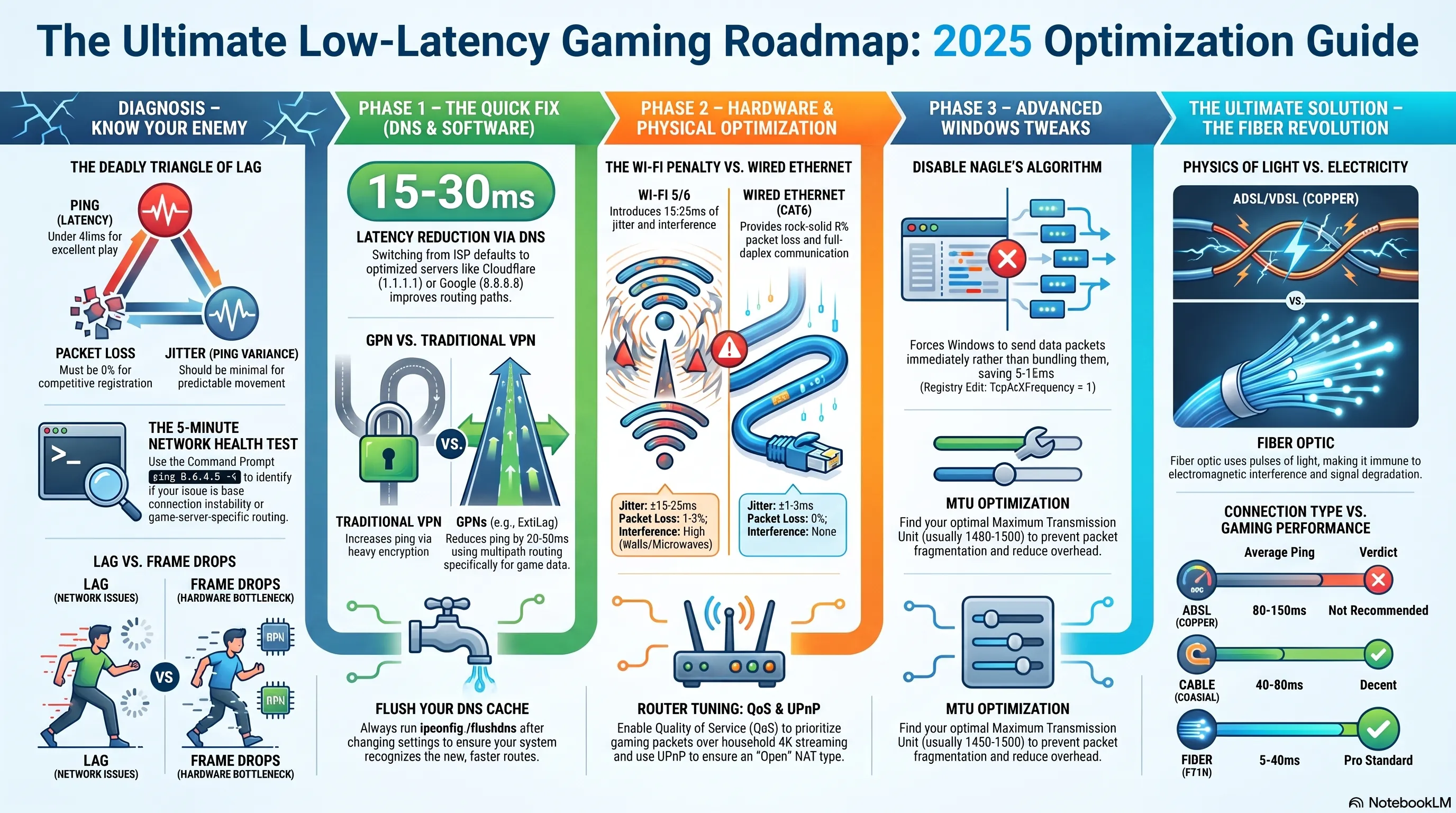
The global gaming landscape in 2025 demands low-latency, stable connections. Whether you're competing in Valorant ranked, pushing for Apex Predator, or simply wanting your shots to register in Call of Duty, the techniques in this guide provide a complete roadmap from diagnosis through optimization to long-term infrastructure investment.
Remember: gaming network optimization is not a one-time task but an ongoing process. As game servers move, ISP infrastructure changes, and new routing technologies emerge, periodically revisit these optimizations. Test your ping regularly, monitor for packet loss, and stay informed about new developments in gaming network technology.
The Tekin Plus team is committed to helping gamers worldwide achieve the best possible online experience. If you have questions, experiences to share, or specific scenarios we didn't cover, join the discussion in the comments below. Your stable, low-latency gaming future starts now.
Technical References & Sources
- RFC 896 - Nagle's Algorithm Technical Specification (IETF)
- Microsoft Documentation - Windows Network Stack Optimization Guide
- Riot Games - Network Troubleshooting and Optimization Guide
- ExitLag Technical Whitepaper - Multipath Routing Architecture
- IEEE 802.3 Standards - Ethernet Cable Specifications (CAT5e/6/6a/7/8)
- Cloudflare Research - DNS Performance Benchmarks and Analysis 2025
- IETF RFC 1323 - TCP Extensions for High Performance
- Battle.net - Network Configuration Best Practices
- Valve Developer Community - Source Engine Network Documentation
- Epic Games - Unreal Engine Network Architecture Documentation
Editorial Update (July 7, 2026)
Additional Gallery: Complete Guide to Reduce Ping & Fix Lag in Online Gaming 2025 | Tekin Plus