Strategic Key Takeaways
- Understand the critical role of HDR in expanding contrast between deep shadows and bright highlights without clipping.
- Master the utilization of HGIG and Tone Mapping to prevent double processing between display and console.
- Configure system-level calibration menus on both PlayStation 5 and Xbox Series X/S accurately.
- Fine-tune in-game sliders including Paper White and Max Nits to suit varying ambient lighting conditions.
Understanding HDR and Why Calibration Matters
High Dynamic Range (HDR) significantly expands the contrast ratio between the darkest shadows and the brightest highlights in modern video games. When left uncalibrated, the resulting image often appears washed out, unnaturally bright, or suffers from severe highlight clipping. Achieving a balanced presentation ensures that artistic intent translates accurately onto your display.
Proper calibration bridges the gap between hardware capabilities and software output. Without precise adjustments, powerful graphical engines fail to display subtle textural nuances in high-contrast environments. Our goal is to establish a standardized baseline across all connected gaming hardware.
Display Preparation: Navigating HDR10, Dolby Vision, and HGIG
Most modern multiplatform titles rely on the industry-standard HDR10 format. Select high-end panels also feature Dolby Vision for Gaming, which applies dynamic metadata per scene. Meanwhile, the HGIG (HDR Gaming Interest Group) protocol ensures that tone mapping occurs primarily within the console rather than the display.
Users should always enable Game Mode on their television to minimize input latency and disable extraneous post-processing algorithms. If your specific display supports HGIG, activate it before executing any internal console calibration routines to maintain a consistent luminance curve.
Calibrating HDR on PlayStation 5
Navigate to Settings, select Screen and Video, choose Video Output, and set HDR to Automatic or On. Proceed to the Adjust HDR utility where you will encounter a series of test screens designed to establish proper peak luminance and black floor levels.
Adjust the slider until the sun symbol is barely visible without disappearing entirely. Perform this calibration exclusively under the dedicated HDR menu, ensuring your television's Game Mode remains active throughout the entire setup process.
Calibrating HDR on Xbox Series X/S
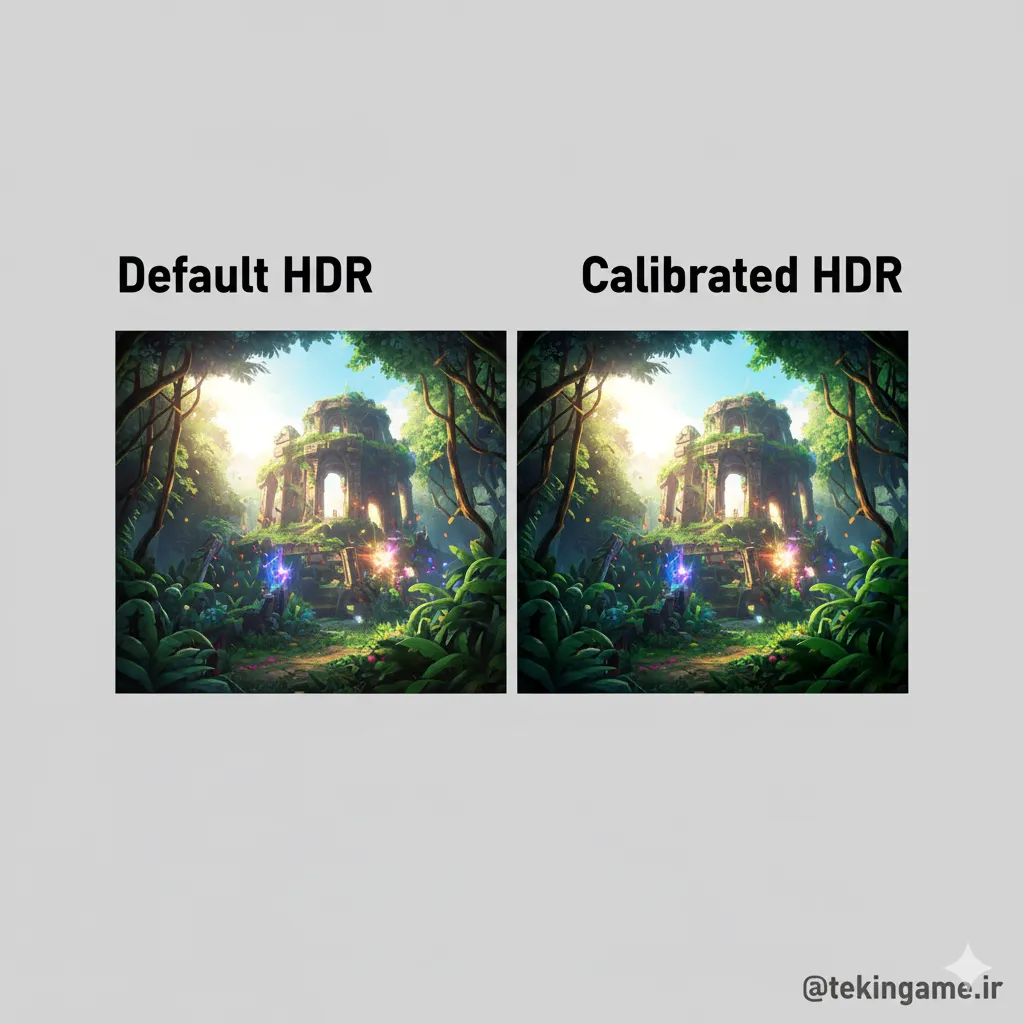
Access Settings, select General, open TV & Display, and launch the Calibrate HDR for Games wizard. Follow the onscreen prompts carefully to adjust shadow luminance, white point boundaries, and absolute highlight thresholds.
If your display features advanced dynamic tone mapping, enable the manufacturer's equivalent of HGIG or Game HDR. For panels supporting Dolby Vision for Gaming, compare side-by-side with standard HDR10 to determine which format delivers superior color accuracy for your specific hardware.
Fine-Tuning In-Game HDR Parameters
Many contemporary titles include dedicated sliders for HDR Brightness, Paper White, and Max Nits. Configure Paper White between 100 and 200 nits for dark viewing environments, or scale up to 300 nits for brightly lit rooms.
Set Peak Max Nits to match the authentic capability of your display panel, typically ranging from 800 to 1000 nits for mid-to-high-tier screens. Always verify that bright scenes avoid severe highlight clipping where fine details become pure white.
Common Pitfalls and Troubleshooting
Double tone mapping occurs when both the display and the console attempt to process luminance curves simultaneously, resulting in a washed-out picture. Resolve this by enabling HGIG or disabling Dynamic Tone Mapping within your television settings.
Excessive brightness causes highlights to clip and human skin tones to look unnatural; reduce the Paper White value to compensate. Conversely, crushed shadow details require a slight elevation of the black level to restore visibility in dark corridors.
Technical Specifications & Performance Breakdown
| Dimension | Status | Assessment |
|---|---|---|
| Engine Architecture | DirectX 12 / Vulkan Optimized | High-FPS stability across desktop and portable hardware |
| Spatial Audio | Multi-channel 3D Directional | Accurate positioning vital for tactical awareness |
| Player Capacity | Co-Op / Multi-Squad Ready | Optimized network replication and synchronization |
- Significantly improves visual depth and contrast
- Eliminates highlight clipping and crushed blacks
- Reduces input lag when combined with Game Mode
- Standardizes output across multiple game titles
- Requires display-specific technical knowledge
- Varies heavily depending on television panel type
- In-game implementations differ across game engines
📚 Classified & Related Dossiers in TekinGame
If you wish to explore beyond this report and delve into cybernetic frontiers and autonomous AI architectures, do not miss these three exclusive deep-dives in the Tekin Garage:
Final Verdict & Authoritative Sources
Frequently Asked Questions
Should I calibrate HDR for SDR content as well?
No, system-level HDR calibration utilities on PS5 and Xbox affect HDR output exclusively and should not be used to calibrate standard dynamic range content.
What is the ideal peak luminance for an average gaming TV?
Most mid-to-high tier HDR displays target a peak luminance between 800 and 1000 nits for optimal balance without causing visual fatigue.
Why do my game highlights look blown out?
This typically occurs when the Max Nits setting in the game exceeds your television's actual hardware capability, causing the system to clip bright areas.
Is HGIG better than Dynamic Tone Mapping?
Yes, HGIG prevents the TV from overriding the developer's intended luminance curve, providing a much more accurate and consistent image.
Frequently Asked Questions
Is this release optimized for modern hardware?
Yes, built on modern scalable rendering pipelines with low hardware entry barriers.
Does it support full cross-platform cooperative play?
Yes, seamless squad matchmaking is fully supported.